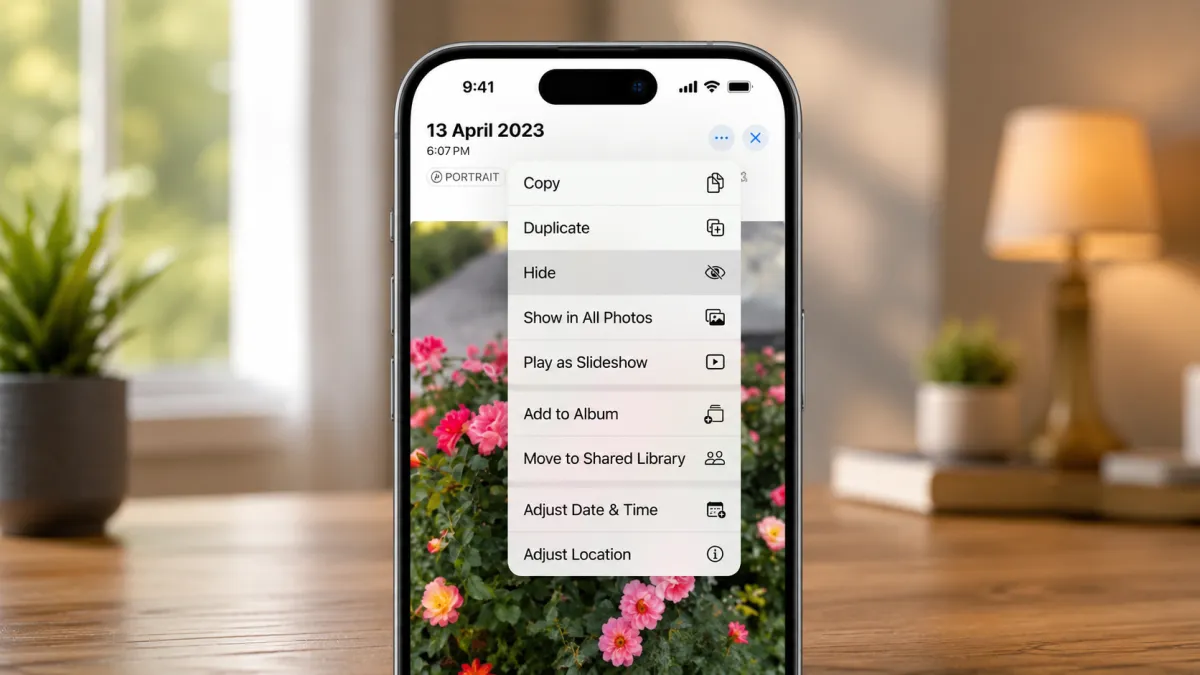
Sharing your iPhone with someone else can sometimes feel uncomfortable when your photo library contains personal pictures. Instead of deleting those images, you can use Apple’s built-in privacy features to keep selected photos away from your regular gallery.
The Photos app includes a Hidden album, while newer versions of iOS also offer additional protection through Face ID, Touch ID, or a passcode. These options make it easier to keep personal pictures private without installing another app.
Also read: How to Customize the Finder Sidebar on Mac for Easier File Access?
Hide Photos Using the Hidden Album
The simplest option is Apple’s built-in Hidden album. When you hide a photo or video, it no longer appears in your normal photo library, albums, or other standard views.
This can be useful for personal pictures, private documents, screenshots, or anything else you don’t want immediately visible while browsing your photos.
Steps to Hide a Photo
- Open the Photos app on your iPhone.
- Tap Select and choose the photos or videos you want to hide.
- Tap the More button.
- Choose Hide.
- Confirm your selection if prompted.
The selected items will then be moved to the Hidden album.
Hide or Show the Hidden Album
You can also control whether the Hidden album is visible inside the Photos app.
Go to:
Settings → Apps → Photos
Depending on your iOS version, look for the option to Show Hidden Album and turn it on or off.
When the album is hidden, it won’t appear in the Photos app until you enable the setting again.
On supported versions of iOS, access to the Hidden album is also protected by your device’s authentication, such as Face ID, Touch ID, or the passcode.
How to Access Hidden Photos
Need to view one of your hidden pictures later? You can access the album from the Photos app.
- Open Photos.
- Go to the Albums section.
- Scroll down to Utilities.
- Tap Hidden.
- Authenticate with Face ID, Touch ID, or your passcode when requested.
Once you’ve finished viewing the photos, the protected album remains secured when you leave it.
You can also select a hidden photo and choose the option to Unhide it if you want to return it to your regular photo library.
Protect the Hidden Album With Face ID or Touch ID
For additional privacy, make sure biometric authentication is enabled for protected photo areas.
Open:
Settings → Apps → Photos
On supported iOS versions, you can use the available authentication option to protect the Hidden and Recently Deleted albums.
This means someone who knows your iPhone passcode may still be unable to access these albums without the required authentication, depending on your device and settings.
Store Sensitive Photos in a Locked Note
Another option is to place selected pictures inside a locked note.
This can be useful when you want to keep a small collection of sensitive images separate from your regular photo library.
How to Do It
- Open the Notes app.
- Create a new note.
- Add the photo or photos you want to protect.
- Use the note’s More or Share options to access the locking feature.
- Choose Lock.
- Set up or use your existing Notes password, Face ID, or Touch ID, depending on your settings.
Once the note is locked, its contents require authentication to access.
Lock the Photos App on Newer iOS Versions
If you’re using a recent version of iOS that supports app locking, you can add another layer of protection by locking the Photos app itself.
To check:
- Find the Photos app on your Home Screen or App Library.
- Press and hold its icon.
- Look for the option to require Face ID, Touch ID, or a passcode.
- Confirm the action using your normal authentication method.
After the lock is enabled, opening Photos requires authentication.
This approach is different from simply hiding individual pictures because it protects access to the entire Photos app.
Which Method Should You Use?
The right option depends on what you want to protect.
- Hide a few photos: Use the Hidden album.
- Protect hidden and recently deleted photos: Use Face ID or Touch ID where supported.
- Keep a small collection separately: Consider a locked note.
- Prevent others from opening Photos: Lock the Photos app on supported iOS versions.
You can also combine these features for additional privacy.
A Few Things to Remember
Hiding a photo isn’t the same as deleting it. The original image remains on your iPhone until you choose to remove it.
It’s also worth remembering that privacy features can vary slightly depending on your iPhone model and iOS version. If you don’t see a particular option, check whether your device is running a supported version of iOS.
Avoid using unknown third-party apps simply to hide photos when Apple’s built-in privacy tools already meet your needs.
Final Thoughts
You don’t need a separate app to keep personal photos away from casual viewers on an iPhone. The Hidden album provides a quick way to remove selected pictures from your normal photo browsing experience, while biometric protection adds another layer of privacy.
For situations that require more control, locked Notes or app locking on supported iOS versions can provide additional protection. Choose the method that fits your needs and keep your iPhone’s software updated so you can take advantage of the latest privacy features.

I am a passionate Tech Writer with strong industry experience. I enjoy exploring the latest technological innovations and sharing clear, helpful insights with my audience.