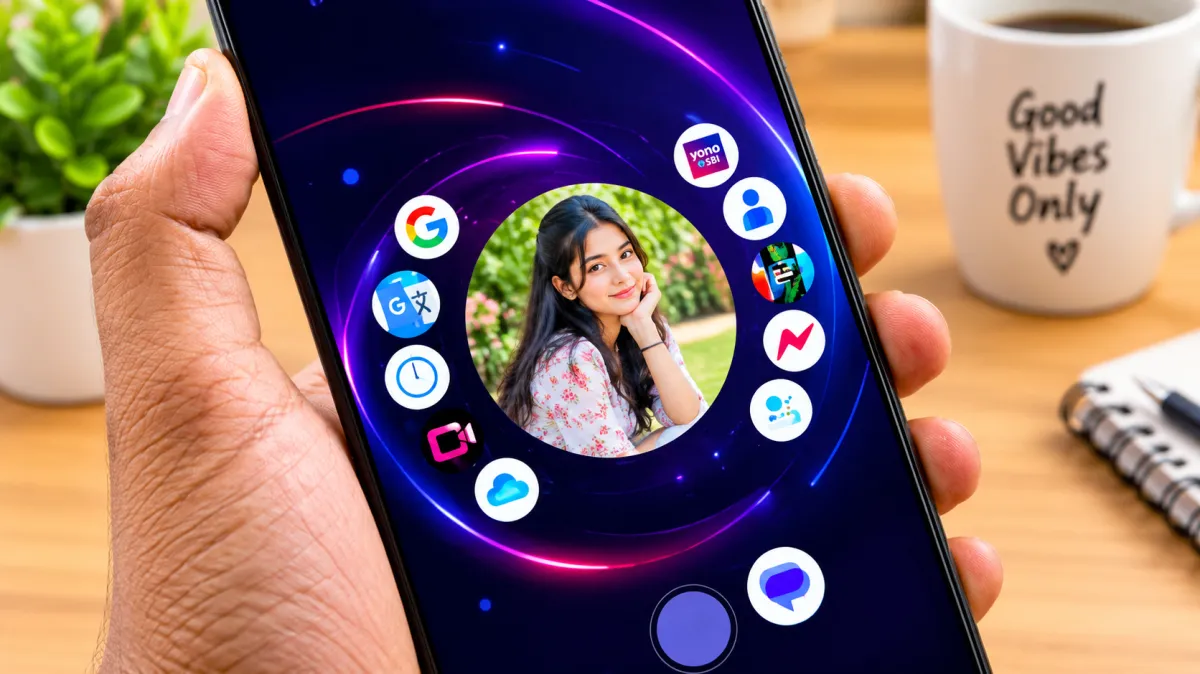
We interact with our smartphone’s home screen countless times every day. After using the same default launcher for months or even years, the familiar grid of icons can start to feel repetitive. While wallpapers and icon packs can change the appearance, they don’t always provide a completely different way to navigate your phone.
Nocebo Launcher takes a more unconventional approach. Instead of relying on a traditional grid-based layout, it introduces a dynamic interface with spinning and changing visual elements. The result is a fresh Android experience designed for users who enjoy experimenting with their phone’s appearance and navigation.
Also read: LED Keyboard – Add Colorful RGB Style to Your Android Typing Experience
What Is Nocebo Launcher?
Nocebo Launcher is a third-party Android launcher that replaces the standard home screen with a more unusual and customizable interface.
Unlike conventional launchers that arrange applications in fixed rows and columns, Nocebo Launcher focuses on a more dynamic presentation. Its spinning layout and changing visual arrangement can make navigating through apps feel completely different from the default Android experience.
It can be particularly appealing to Android users who want something beyond the usual wallpaper, widgets, and icon customization.
What Makes Nocebo Launcher Interesting?
There are countless Android launchers available, but Nocebo Launcher attempts to stand out through its unique approach to home-screen navigation.
Instead of simply changing colors or icon shapes, it changes the way applications are presented and accessed. This can give your smartphone a more experimental and futuristic appearance.
Let’s take a closer look at its main highlights.
Key Features of Nocebo Launcher
1. Unique Spinning Interface
The spinning layout is one of the most noticeable aspects of Nocebo Launcher.
Rather than keeping your applications in a conventional static grid, the launcher uses movement and positioning to create a more dynamic interface. This gives the home screen a distinctive appearance and makes navigation feel different from standard Android launchers.
Users who enjoy trying unusual interfaces may find this approach especially interesting.
2. Extensive Customization
Customization is an important part of any third-party launcher, and Nocebo Launcher focuses heavily on giving users control over the appearance of their home screen.
Depending on the available options, you can adjust the layout and overall visual style to create an interface that matches your preferences.
You can aim for a:
- Minimal appearance
- Futuristic design
- Unconventional layout
- Clean and simple interface
- More personalized home screen
This flexibility allows different users to create completely different experiences.
3. Dynamic Home Screen Design
Traditional Android launchers generally keep the same basic arrangement even when you change wallpapers or icons.
Nocebo Launcher takes a different approach with its dynamic design. The changing arrangement of applications can make the home screen feel more interactive rather than simply acting as a collection of static icons.
For users who enjoy experimenting with smartphone interfaces, this can make everyday navigation more interesting.
4. Alternative App Navigation
One of the biggest reasons to try a custom launcher is to experience a different way of accessing applications.
Nocebo Launcher provides an alternative to the familiar grid-based app drawer. While the new navigation style may require some adjustment initially, it can become an enjoyable option for people who want something different.
Why Use a Custom Android Launcher?
A launcher can change much more than the wallpaper on your smartphone. It controls important parts of the home-screen experience, including how applications are organized and accessed.
Some common reasons for installing a custom launcher include:
- Creating a personalized home screen
- Improving app organization
- Trying a different navigation style
- Reducing visual clutter
- Experimenting with new interface designs
- Giving an older phone a fresh appearance
Nocebo Launcher is aimed more toward users who want a noticeably different interface rather than a small visual change.
Who Should Try Nocebo Launcher?
Nocebo Launcher may be worth considering if you:
- Enjoy customizing Android devices
- Prefer unusual interfaces
- Are tired of traditional icon grids
- Like minimalist or futuristic designs
- Want to experiment with alternative navigation
- Enjoy trying new Android customization tools
On the other hand, users who prefer a familiar and straightforward Android interface may need some time to adjust to its unconventional design.
Performance Is Important
A visually impressive launcher is only useful if it works smoothly on your phone.
Before making Nocebo Launcher your permanent home screen, spend some time testing it. Pay attention to everyday tasks such as:
- Opening applications
- Moving between screens
- Navigating the launcher
- Using animations
- Returning to the home screen
If you have an older or entry-level Android device, check whether the launcher runs smoothly before using it as your default launcher.
Performance can vary depending on your phone’s hardware, Android version, and the launcher settings you use.
Check Battery Usage
Some launchers rely on animations and visual effects that may consume additional system resources.
After installing Nocebo Launcher, monitor your battery usage for a few days. If you notice unusual battery consumption, try reducing animations or disabling visual effects that you don’t need.
A balanced setup can provide an attractive interface without unnecessarily affecting everyday usage.
Privacy and Permissions
Privacy should always be considered when installing a third-party launcher.
Because a launcher interacts with your home screen and applications, it may request certain permissions to provide its features. Before granting access, review exactly what the app is asking for and consider whether each permission is necessary.
For better security:
- Download the app from a trusted source.
- Check the developer information.
- Review recent user feedback.
- Read the available privacy information.
- Keep the application updated.
- Avoid granting unnecessary permissions.
These simple precautions can help you make a safer decision when trying any third-party customization app.
How to Try Nocebo Launcher
Getting started with a custom launcher is generally simple:
- Install Nocebo Launcher from a trusted source.
- Open the application after installation.
- Follow the initial setup instructions.
- Explore the available layout and customization options.
- Adjust the interface according to your preferences.
- Test the launcher for a while before setting it as your permanent default.
If you decide that the interface isn’t suitable for your daily usage, you can switch back to your phone’s original launcher through the Android launcher settings.
Is Nocebo Launcher Right for You?
That depends largely on what you expect from your smartphone.
If you want a conventional launcher with familiar icons, folders, and straightforward navigation, Nocebo Launcher may feel unusual at first.
However, if your main goal is to make your Android phone look and behave differently, its dynamic and unconventional approach could be worth exploring.
The best way to decide is to use it yourself and see whether the navigation style feels comfortable.
Things to Check Before Installing
Before replacing your current launcher, consider these points:
Android Compatibility
Make sure the launcher supports the Android version installed on your phone.
Customization
Check which aspects of the interface you can actually modify.
Performance
Test animations, app opening, and navigation for smoothness.
Battery Consumption
Monitor battery usage after installation, especially if the launcher uses animations.
Privacy
Review the permissions and privacy information before granting access.
Updates
Check whether the developer regularly maintains and updates the application.
Considering these factors can help you avoid performance or compatibility problems later.
Nocebo Launcher vs Traditional Launchers
The biggest difference is the approach to navigation.
Traditional launchers generally focus on familiar layouts, making it easy to find applications without learning a new interaction style. Nocebo Launcher, on the other hand, prioritizes a more experimental experience with its spinning and changing interface.
This makes it less about simply decorating the Android home screen and more about changing the way you interact with it.
Official Play Store Link
Final Thoughts
Nocebo Launcher offers a different take on Android customization. Its spinning layout, dynamic home-screen design, and focus on unconventional navigation make it an interesting choice for users who are bored with traditional launcher layouts.
It won’t necessarily be the right choice for everyone. People who value familiarity and simplicity may prefer their phone’s default launcher, while customization enthusiasts may enjoy experimenting with something completely different.
If you’re looking for a fresh way to personalize your Android smartphone, Nocebo Launcher is worth exploring. Just remember to check compatibility, performance, battery usage, permissions, and privacy before making it your everyday launcher.

I am a passionate Tech Writer with strong industry experience. I enjoy exploring the latest technological innovations and sharing clear, helpful insights with my audience.