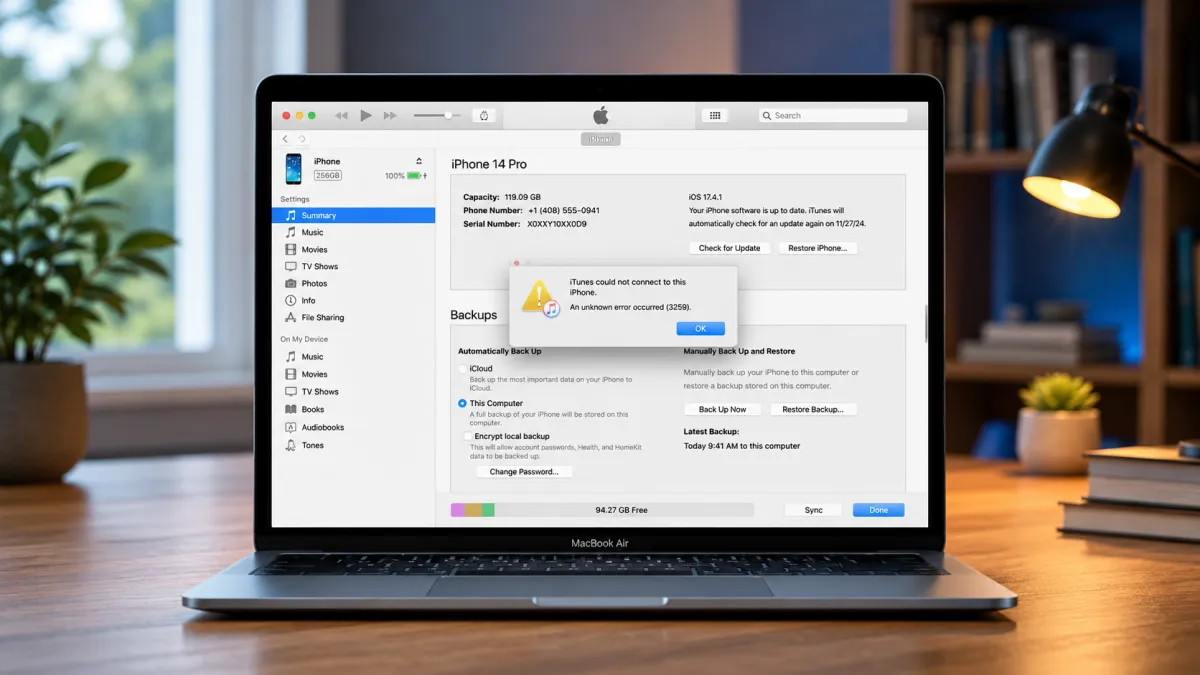
Seeing iTunes Error 3259 can be frustrating, especially when you are trying to sync an iPhone, download content, or complete an update. The error usually indicates that iTunes is having trouble communicating with Apple’s online services.
The cause can range from a poor internet connection to outdated software, firewall restrictions, or incorrect system settings. In most cases, you can work through a few basic troubleshooting steps before trying anything complicated.
Also read: How to Hide Photos on an iPhone: Easy Ways to Keep Your Pictures Private
Why Does iTunes Error 3259 Appear?
Error 3259 can be caused by different issues, so there is no single fix that works for everyone.
Some possible reasons include:
- Unstable or slow internet connectivity
- An outdated iTunes installation
- Pending Windows or macOS updates
- Firewall or antivirus restrictions
- Incorrect system date or time
- Changes made to the hosts file
- Corrupted iTunes files
- Other software interfering with the connection
Start with the simpler solutions first, as they are less likely to affect your system settings.
1. Make Sure iTunes Is Updated
An older version of iTunes may have compatibility or connection issues.
If you use iTunes on Windows, check for updates using the same method through which you installed it. For example, Microsoft Store installations can be updated through the Store.
On a Mac, available system and Apple software updates can be checked through the Mac’s software update settings, depending on the version of macOS you are running.
After installing an update, restart your computer and check iTunes again.
2. Check for Operating System Updates
Your computer’s operating system can also affect how iTunes communicates with online services.
On Windows, open Windows Update and look for pending updates. Mac users can check Software Update in System Settings or System Preferences, depending on their macOS version.
Install any important available updates and restart the computer if necessary.
3. Test Your Internet Connection
A network connection that frequently drops can prevent iTunes from reaching Apple’s servers properly.
Try opening several websites in your browser to see whether the connection is working normally. If the internet seems unreliable, restart your router and reconnect the computer.
You can also try a different trusted network. If iTunes works normally there, your original network may be responsible for the problem.
4. Verify Your Computer’s Date and Time
Incorrect date, time, or time-zone settings can sometimes interfere with secure internet connections.
Open your computer’s date and time settings and check that everything is correct. Enabling automatic time and time-zone synchronization is generally the simplest option.
Once you have corrected the settings, restart iTunes and try the operation again.
5. Check Firewall and Antivirus Settings
Security software can occasionally prevent iTunes from making the network connections it needs.
Open your firewall settings and check whether iTunes is allowed to communicate through the network. The exact procedure will vary depending on whether you are using Windows, macOS, or third-party security software.
If your antivirus program includes network or web protection, check its settings as well.
If you temporarily disable a security feature for testing, turn it back on afterward. Do not leave your computer unprotected simply to bypass the error.
6. Review the Hosts File
The hosts file controls how certain internet addresses are mapped on your computer. If it has been manually edited, incorrect entries could potentially interfere with connections to Apple’s services.
This is an advanced step, so avoid modifying the file unless you know what you are changing.
Before making any changes, create a backup of the existing file. If you are unsure about its contents, consider getting help rather than deleting entries at random.
A security scan can also be useful if you suspect that unwanted software has changed your system configuration.
7. Reinstall iTunes
If the problem continues after checking your connection and system settings, the iTunes installation itself could be damaged.
Reinstalling the software can replace missing or corrupted program files. Before removing iTunes, however, make sure you know where your important device backups and other related data are stored.
If you have valuable backups, create an additional copy before making significant changes.
Once iTunes has been installed again, restart your computer and test the connection.
8. Try Another Internet Network
Your current network may sometimes be the source of the problem rather than iTunes itself.
Connect the computer to another trusted network and try the same operation again. If Error 3259 disappears, the original router, network configuration, or network restrictions may require further investigation.
This test can quickly help you determine whether the issue is related to the computer or the network.
Should You Use Third-Party Repair Software?
You may find third-party programs that claim to repair iTunes or iPhone connection problems. These tools can sometimes provide additional troubleshooting options, but they should be used carefully.
Before installing one, check:
- Who developed the software
- Whether it comes from an official website
- What permissions it requires
- Whether it can access your personal data
- Whether it provides backup or recovery options
- What other users say about the software
Be cautious with programs that promise guaranteed repairs or claim they can fix every iPhone problem with a single click.
For unusual or persistent errors, official Apple support resources are generally a safer place to seek assistance.
When You Should Contact Apple Support
If none of the troubleshooting methods solve Error 3259, it may be worth contacting Apple Support.
When asking for help, provide as much information as possible, including:
- The exact error message
- Your computer’s operating system
- Your iTunes version
- The iPhone model you are using
- What you were doing when the error appeared
- Which troubleshooting steps you have already tried
These details can make it easier to determine where the problem is occurring.
Final Thoughts
iTunes Error 3259 can be caused by several connection, software, or system configuration problems. Fortunately, you can start with straightforward solutions such as checking your internet connection, updating software, correcting the system clock, and reviewing firewall settings.
If the error remains, you can move on to more advanced options such as checking the hosts file or reinstalling iTunes. Before making major system changes, always protect your important backups and avoid modifying settings you do not fully understand.
With a step-by-step approach, you can usually narrow down the cause and find the safest way to get iTunes working again.

I am a passionate Tech Writer with strong industry experience. I enjoy exploring the latest technological innovations and sharing clear, helpful insights with my audience.