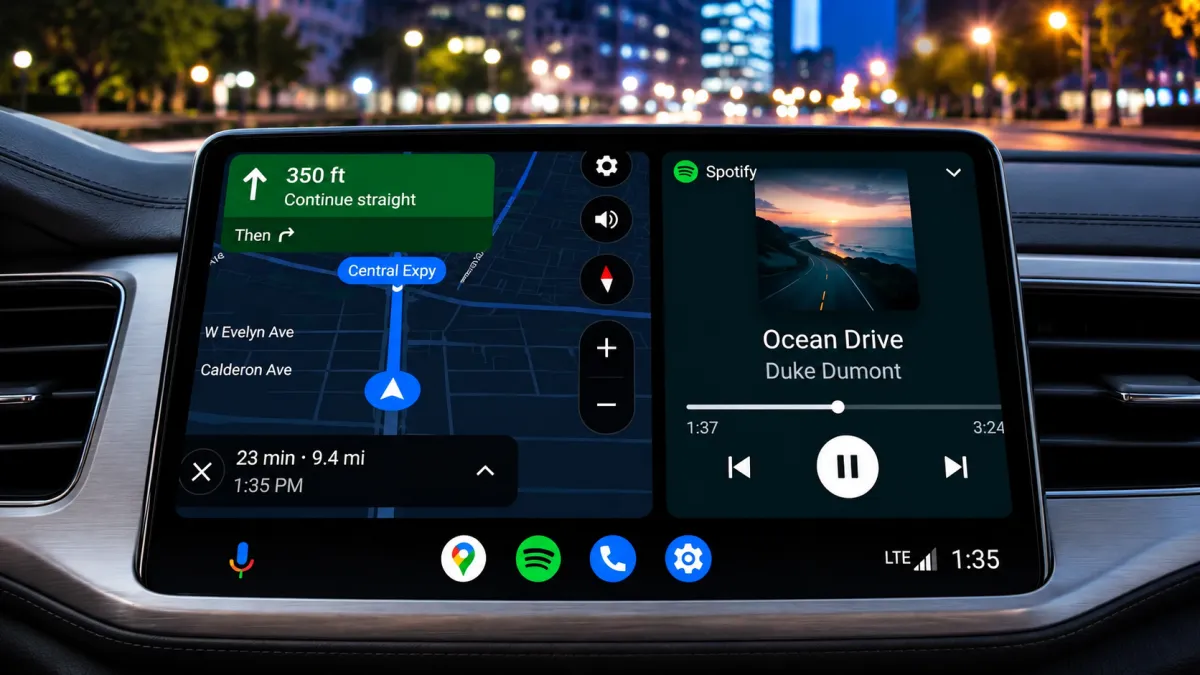
Android Auto has become an essential companion for drivers who rely on navigation, music streaming, and hands-free communication. With the introduction of the Coolwalk interface, Google redesigned Android Auto to make multitasking easier and safer while driving.
One of Coolwalk’s most useful additions is the split-screen layout, which lets you view navigation alongside media controls and other supported apps. Instead of constantly switching between applications, you can keep everything you need within easy reach.
Also read: Best 3D Live Wallpaper Apps for Android With Clock, Battery and Charging Widgets
What Is the Coolwalk Interface?
Coolwalk is the modern user interface for Android Auto that introduces a more flexible and organized dashboard. It supports multitasking by displaying multiple apps on the infotainment screen simultaneously, making everyday driving more convenient.
The updated layout adapts to different display sizes and is designed to keep frequently used controls easily accessible while minimizing distractions.
How Split Screen Works in Android Auto
When Coolwalk is enabled on a compatible vehicle, Android Auto automatically divides the display into multiple sections.
Typically, you’ll see:
- A large navigation window
- A smaller media control panel
- Quick access to recently used apps
- Status information such as notifications and calls
For example, you can navigate with Google Maps or Waze while controlling music from Spotify without leaving the navigation screen.
If you switch to another supported audio app, Android Auto updates the media panel automatically while your route remains active.
How to Enable Split Screen
In most cases, the split-screen interface activates automatically once your vehicle supports the Coolwalk dashboard.
If it doesn’t appear, follow these steps:
- Connect your Android phone to your vehicle.
- Launch Android Auto.
- Start a navigation app such as Google Maps or Waze.
- Open a supported music or podcast application.
- Android Auto should automatically display both apps together.
No additional installation is usually required on supported systems.
Switch Between Split Screen and Full Screen
Sometimes you may prefer focusing on a single application, especially during navigation.
To change the view:
- Locate the multi-window or layout button on the Android Auto display.
- Tap it to switch to full-screen mode.
- Tap it again whenever you want to return to the split-screen dashboard.
This allows you to alternate between multitasking and a distraction-free navigation view.
Update Android Auto for the Latest Features
If your vehicle still shows the older interface, make sure you’re using the latest Android Auto version.
To update:
- Open the Google Play Store.
- Search for Android Auto.
- Install any available updates.
- Reconnect your phone to the vehicle.
Many interface improvements become available automatically after updating.
Customize the Dashboard Layout
Android Auto allows users to adjust which information appears closer to the driver.
To change the layout:
- Open Android Auto settings on your phone.
- Select General.
- Tap Change Layout (if available).
- Choose either:
- Navigation Closer to Driver
- Media Closer to Driver
Some vehicles also provide similar options directly through the infotainment system.
Stay Connected Without Leaving the Map
One advantage of the Coolwalk interface is that important notifications appear without interrupting navigation.
Supported notifications include:
- Incoming phone calls
- Text messages
- Messaging app alerts
When Google Assistant is available, you can reply using voice commands instead of touching the screen, helping you stay focused on driving.
Compatible Apps
Android Auto works with many popular navigation and media applications.
Navigation Apps
- Google Maps
- Waze
Music and Podcast Apps
- Spotify
- Pocket Casts
- Other supported music and podcast services
Installed compatible apps usually appear automatically in Android Auto.
Advantages of Using Split Screen
The split-screen interface offers several practical benefits during daily driving.
Some of the biggest advantages include:
- Navigation and media controls on one screen
- Fewer app switches while driving
- Easier access to notifications
- Faster music and podcast controls
- Better support for hands-free driving with Google Assistant
- A cleaner and more organized dashboard
These improvements help reduce unnecessary distractions while keeping essential information visible.
Things to Know Before Using Coolwalk
Although Coolwalk works well on many vehicles, the experience may vary depending on your hardware.
Keep in mind:
- Not every vehicle supports every Coolwalk feature.
- Larger infotainment displays provide a better multitasking experience.
- Available layouts depend on screen size and vehicle compatibility.
- Some apps may not support split-screen functionality.
If something doesn’t display correctly, restarting Android Auto or reconnecting your phone may resolve the issue.
How to Reset Android Auto
If you’re experiencing connection issues or want to remove saved vehicles, Android Auto includes a reset option.
To clear saved cars:
- Open Android Auto settings.
- Go to Previously Connected Cars.
- Select Forget All Cars.
Afterward, reconnect your phone and complete the setup again if necessary.
Android Auto vs. Apple CarPlay
Apple CarPlay also offers a dashboard interface that combines navigation, media playback, and communication tools on a single screen.
Both platforms are designed to simplify in-car interactions by reducing the need to switch between apps while driving.
The available features may differ depending on your vehicle and smartphone ecosystem.
What’s Next for Android Auto?
Google continues to update Android Auto with improvements for different display sizes, vehicle types, and multitasking capabilities.
Future updates are expected to enhance dashboard customization, improve compatibility with more infotainment systems, and deliver an even smoother driving experience.
Also read: Battery Charging Animation App for Android: Enjoy 3D Effects and Live Charging Wallpapers
Final Thoughts
Android Auto’s Coolwalk interface makes multitasking much easier by combining navigation, music controls, notifications, and communication tools into a single, easy-to-use dashboard. The split-screen layout helps drivers access important information without repeatedly switching between apps.
If your vehicle supports Coolwalk, keeping Android Auto updated and customizing the dashboard layout can help you get the most out of your in-car experience while maintaining a cleaner and more convenient interface.

I am a passionate Tech Writer with strong industry experience. I enjoy exploring the latest technological innovations and sharing clear, helpful insights with my audience.