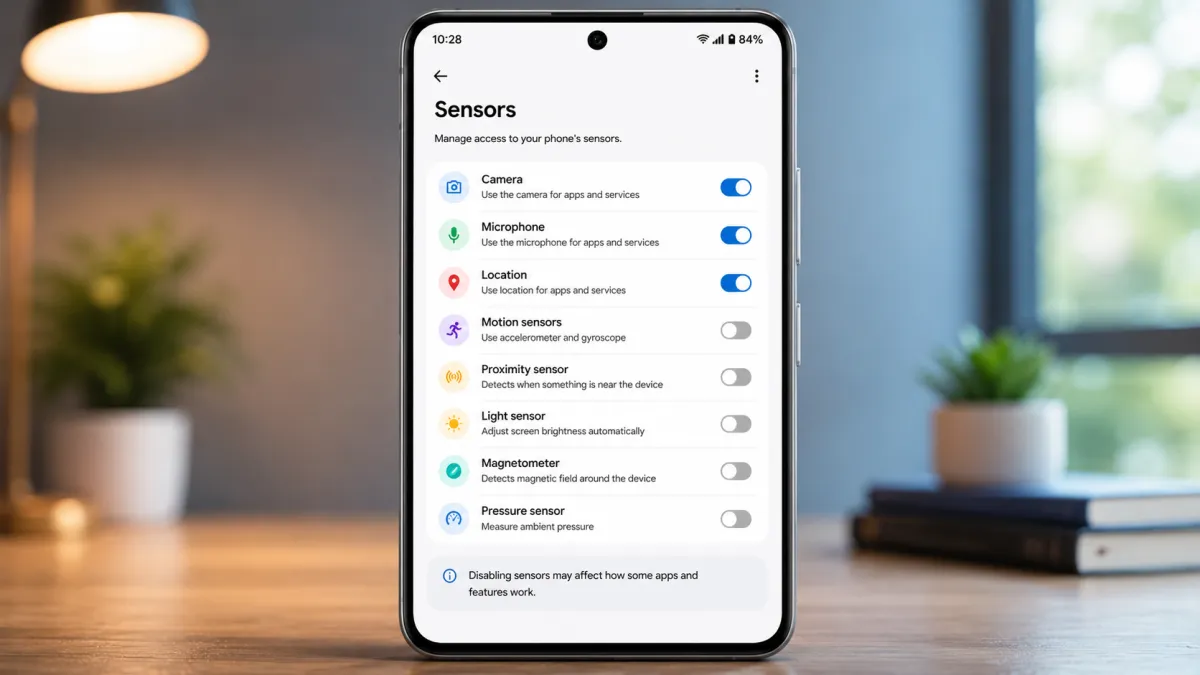
Modern Android smartphones use a variety of hardware sensors to support features like camera access, voice calls, screen rotation, navigation, and motion detection. While these sensors improve the overall user experience, there may be situations where you want to temporarily disable them to enhance your privacy.
If your phone is running Android 10 or a newer version, Android provides a built-in Sensors Off feature that allows you to disable most hardware sensors without installing any additional apps. This guide explains how to enable and use this feature safely.
Also read: How to Add a Clickable Link to Your Instagram Story?
What Are Android Hardware Sensors?
Your smartphone contains several sensors that help apps and system services function correctly. These components collect information about your device and surroundings to provide different features.
Some of the most common Android sensors include:
- Camera
- Microphone
- Accelerometer
- Gyroscope
- Proximity sensor
- Magnetometer (Compass)
- Ambient light sensor
- Other motion and environmental sensors
Many everyday apps depend on these sensors to deliver navigation, photography, voice commands, gaming, and automatic screen adjustments.
Why Would You Disable Phone Sensors?
Although Android includes a permission system to control app access, there are times when temporarily disabling hardware sensors can provide additional privacy.
You might use the feature to:
- Prevent supported apps from accessing your camera and microphone
- Increase privacy during confidential meetings
- Reduce unwanted sensor activity
- Gain more control over your device while not using certain features
- Temporarily limit access to motion-based sensors
Since the feature can be turned on and off at any time, it’s a convenient option when privacy is especially important.
Make Sure Your Phone Supports the Feature
The Sensors Off option is available on devices running Android 10 or later.
To check your Android version:
- Open Settings.
- Tap About Phone.
- Locate Android Version.
If your phone has a software update available, installing the latest version may provide newer privacy improvements and security enhancements.
Enable Developer Options
The Sensors Off shortcut is located inside Android’s Developer Options.
To activate Developer Options:
- Open Settings.
- Go to About Phone.
- Find Build Number.
- Tap it repeatedly until Android confirms that Developer Options have been enabled.
- Enter your PIN, password, or pattern if prompted.
Enabling Developer Options does not affect your personal data or damage your device.
Add the Sensors Off Shortcut
Once Developer Options are enabled:
- Return to Settings.
- Open System.
- Select Developer Options.
- Scroll to Quick Settings Developer Tiles.
- Turn on the Sensors Off option.
Android will automatically add a new tile to your Quick Settings panel.
How to Disable Phone Sensors
Using the feature is quick and simple.
- Swipe down from the top of the screen to open Quick Settings.
- Tap the Sensors Off tile.
- Android will immediately disable supported hardware sensors.
Whenever you want to restore normal functionality, tap the tile again.
How to Confirm Sensors Are Disabled
When the feature is active, Android displays an indicator in the status bar or notification area.
This visual reminder lets you know that supported sensors remain disabled until you turn them back on.
What Happens After Turning Sensors Off?
Enabling Sensors Off temporarily blocks access to several hardware components.
Depending on your device, you may notice that:
- Camera apps cannot capture photos or record videos.
- The microphone stops recording audio.
- Motion detection features stop working.
- Compass-based navigation becomes unavailable.
- Some applications may show limited functionality until sensors are re-enabled.
Once you disable the feature, your phone returns to normal operation.
Features That Continue Working
Even with hardware sensors disabled, many core phone functions continue operating normally.
These typically include:
- Wi-Fi connectivity
- Mobile network access
- Internet browsing
- Touchscreen controls
- On-screen keyboard
- Phone speakers
- Apps that do not depend on disabled sensors
However, features such as voice recording, voice typing, and video calling may not work because they require camera or microphone access.
Things to Know Before Using This Feature
Before enabling Sensors Off, keep these points in mind:
- Your device must run Android 10 or later.
- Menu locations may vary slightly depending on the phone manufacturer.
- Many Google Pixel devices support this feature.
- Several Samsung Galaxy phones also include it.
- You can enable or disable sensors instantly from Quick Settings whenever needed.
Tips for Better Privacy on Android
Disabling sensors is only one way to improve privacy. You can also:
- Review app permissions regularly.
- Allow camera and microphone access only when necessary.
- Keep Android updated with the latest security patches.
- Download apps only from trusted sources.
- Remove apps you no longer use.
Combining these practices helps strengthen your overall device security.
Also read: How to Use Android Auto Split Screen?
Final Thoughts
Android’s Sensors Off feature offers a simple and effective way to temporarily disable supported hardware sensors whenever additional privacy is needed. Whether you’re attending a confidential meeting, handling sensitive information, or simply want greater control over your smartphone, this built-in option can help limit access to your device’s camera, microphone, and other sensors with a single tap.
Because the feature is easy to enable and just as easy to turn off, it provides a practical balance between privacy and everyday usability without permanently changing your phone’s settings.

I am a passionate Tech Writer with strong industry experience. I enjoy exploring the latest technological innovations and sharing clear, helpful insights with my audience.