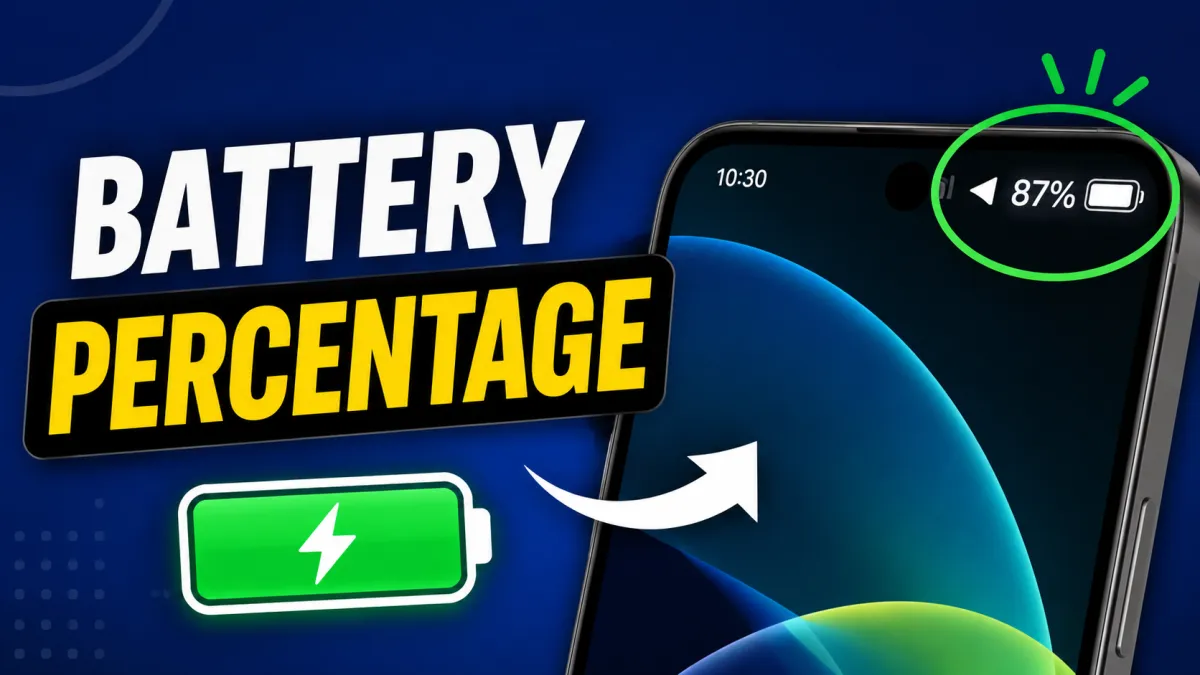
Keeping an eye on your phone’s battery is important, especially if you use your device for work, gaming, navigation, or streaming. While most Android phones display a battery icon in the status bar, it doesn’t always show the exact charge remaining. By enabling the battery percentage, you can instantly see how much power is left and plan your charging more effectively.
This guide explains how to turn on the battery percentage on Android phones, why it’s useful, and what to do if you can’t find the option.
Also read: How to Uninstall Apps on a Mac?
Why Enable Battery Percentage?
The battery icon gives only a rough estimate of your remaining charge. Displaying the exact percentage offers several advantages:
- Know exactly how much battery is left.
- Plan charging before the battery gets too low.
- Monitor battery drain while using apps.
- Avoid unexpected shutdowns during important tasks.
- Track battery performance more accurately.
Whether you’re traveling or working away from a charger, the battery percentage helps you stay prepared.
How to Turn On Battery Percentage
Most Android phones include a built-in option to display the battery percentage.
Follow these steps:
- Open Settings.
- Tap Battery.
- Look for Battery Percentage or Show Battery Percentage.
- Turn the option On.
The exact wording may vary depending on your phone brand and Android version, but the feature is usually found in the Battery section.
Alternative Method
On some Android devices, the option is located inside the Status Bar settings.
Steps:
- Open Settings.
- Tap Notifications & Status Bar or Display.
- Select Status Bar.
- Enable Battery Percentage.
Once activated, the battery percentage will appear beside or inside the battery icon.
If You Can’t Find the Option
Some manufacturers place the setting in a different location.
Try these methods:
- Open Settings and use the search bar.
- Search for Battery Percentage.
- Search for Status Bar.
- Search for Battery.
Using the search feature is often the fastest way to locate hidden settings.
Battery Percentage on Different Android Brands
The location of the setting may vary slightly.
Samsung Galaxy
Go to:
Settings → Notifications → Advanced Settings → Show Battery Percentage
Google Pixel
Go to:
Settings → Battery → Battery Percentage
Xiaomi (MIUI/HyperOS)
Go to:
Settings → Notifications & Control Center → Status Bar → Show Battery Percentage
OnePlus
Go to:
Settings → Notifications & Status Bar → Status Bar → Battery Style
Realme, OPPO, and Vivo
Usually found under:
Settings → Notifications & Status Bar → Battery Percentage
Menu names may differ slightly depending on the software version.
Benefits of Showing Battery Percentage
Displaying the battery percentage provides better control over your device.
Advantages include:
- Better battery management.
- Easier to monitor battery health.
- Helps identify apps that drain power quickly.
- Makes Battery Saver timing more accurate.
- Useful while traveling or commuting.
Even a quick glance tells you exactly how much battery remains.
Tips to Improve Battery Life
Once you’ve enabled the battery percentage, consider these habits to extend battery life:
- Enable Battery Saver when needed.
- Lower screen brightness.
- Turn off Bluetooth and GPS when not in use.
- Use Dark Mode on OLED displays.
- Close apps running unnecessarily in the background.
- Keep your phone updated with the latest software.
Small changes like these can noticeably improve battery performance throughout the day.
Frequently Asked Questions
Does showing the battery percentage drain more battery?
No. Displaying the battery percentage uses a negligible amount of power and has virtually no impact on battery life.
Why can’t I find the battery percentage option?
Some older Android versions or custom user interfaces may place the setting in a different menu. Using the Settings search feature usually helps locate it quickly.
Can I display the battery percentage while charging only?
Some Android manufacturers offer this option, but availability depends on your phone model and software version.
Final Thoughts
Enabling the battery percentage is one of the simplest ways to manage your Android phone more effectively. Instead of relying on the battery icon alone, you’ll always know exactly how much charge remains. Combined with Battery Saver and good charging habits, this small setting can make your daily smartphone experience more convenient and help you avoid running out of power unexpectedly.

I am a passionate Tech Writer with strong industry experience. I enjoy exploring the latest technological innovations and sharing clear, helpful insights with my audience.