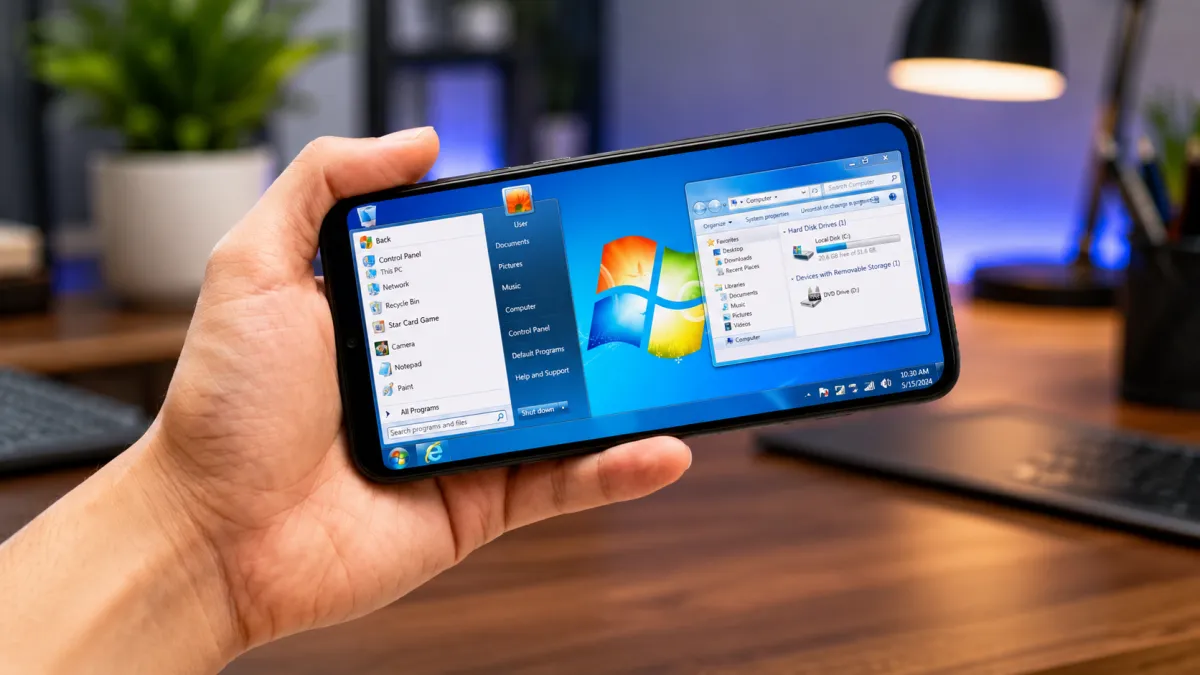
Android phones are capable of handling much more than calls and social media. You can manage files, browse the web, work with documents, and use a wide range of productivity apps directly from your smartphone.
If you enjoy the familiar appearance of a desktop computer, a Computer Launcher can give your Android device a completely different look. These apps replace the standard Home screen with a PC-inspired layout featuring desktop icons, menus, and other familiar elements.
Also read: Comfer Launcher: A Fast and Privacy-Focused Launcher for Android
What Is a Computer Launcher?
A Computer Launcher is an Android app that changes the appearance and layout of your phone’s interface to resemble a desktop computer.
Instead of using the usual Android Home screen, you may see features inspired by traditional computer interfaces, such as:
- Desktop-style app icons
- A Start menu-inspired app launcher
- Taskbar-style navigation
- Folder shortcuts
- Desktop-like layouts
It’s important to understand that a launcher does not install Windows on your Android phone. Your device continues to run Android; only the launcher interface changes.
Why Use a Desktop-Style Launcher?
A computer-inspired launcher can be useful for people who enjoy organizing their phone in a different way.
A Familiar PC-Like Layout
If you regularly use a computer, a desktop-style interface may feel familiar and easy to navigate.
Apps can be accessed through a menu, while frequently used shortcuts can be placed directly on the Home screen.
Keep Apps Better Organized
A launcher can help you arrange shortcuts and folders according to your preferences.
For example, you can group apps based on categories such as:
- Work
- Entertainment
- Social media
- Utilities
- Productivity
A well-organized layout can make frequently used apps easier to find.
Desktop-Inspired File Management
Some Computer Launcher apps include file management tools or provide quick access to your device’s folders.
This can make it easier to browse:
- Downloads
- Documents
- Photos
- Videos
- Internal storage folders
The exact features available will depend on the launcher you choose.
Customize Your Home Screen
One of the main reasons people use launchers is personalization.
Depending on the app, you may be able to change:
- Wallpapers
- App icons
- Desktop layout
- Folder styles
- Shortcut placement
- Menu appearance
This allows you to create a setup that matches your personal preferences.
Quick Access to Important Apps
A desktop-style layout can make your most frequently used applications available directly from the Home screen.
You can place shortcuts where they are easiest to reach instead of searching through a long list of installed apps.
This may be useful for people who regularly use productivity, office, or file-management apps.
Things You Should Know Before Installing
A Computer Launcher can change the look of your phone, but there are a few things to consider.
It Doesn’t Turn Android Into Windows
The launcher only changes the interface. Your phone still uses the Android operating system and Android apps.
Performance Can Vary
Some launchers include animations and additional visual effects that may use more memory or battery.
The experience can depend on:
- Your phone’s processor
- Available RAM
- Android version
- The specific launcher
- Number of installed widgets and shortcuts
Features Differ Between Apps
Not every Computer Launcher offers the same tools. Some focus mainly on appearance, while others include additional customization and file-management features.
Always check the app description before installing.
How to Install a Computer Launcher
The process is generally straightforward.
- Open the Google Play Store on your Android phone.
- Search for Computer Launcher.
- Review the available options.
- Choose an app from a trusted developer.
- Tap Install.
- Open the launcher after installation.
- Follow the setup instructions.
Your phone may ask which launcher you want to use as your default Home app. You can select the new launcher if you want to use it regularly.
How to Use a Computer Launcher
After completing the initial setup, you can start customizing your new interface.
Open Applications
Use the desktop icons or app menu to launch installed applications.
Add Shortcuts
Many launchers allow you to add frequently used apps directly to the desktop.
This can provide faster access to the tools you use every day.
Organize Your Layout
You can move icons and create folders to keep your Home screen neat.
Try placing your most important apps in easily accessible locations.
Customize the Appearance
Open the launcher’s settings to explore available customization options.
Depending on the app, you may be able to modify the wallpaper, icons, menus, and overall layout.
Who Might Enjoy Computer Launcher?
PC Users
People who spend a lot of time using desktop computers may enjoy the familiar layout.
Customization Fans
If you enjoy changing the appearance of your Android phone, a desktop-style launcher offers another way to personalize your device.
Productivity Users
A well-organized Home screen can make it easier to access work-related apps, documents, and frequently used tools.
Users Looking for a Fresh Interface
Sometimes simply changing your launcher can make an old phone feel different without changing the device itself.
Tips for the Best Experience
To keep your phone running smoothly:
- Avoid installing too many unnecessary widgets.
- Keep the launcher updated.
- Organize only the shortcuts you actually use.
- Remove apps you no longer need.
- Review the permissions requested by the launcher.
- Download apps from trusted sources.
If your phone becomes slower after installing a launcher, try reducing animations or widgets through the app’s settings.
Can You Switch Back to Your Old Launcher?
Yes. Installing a new launcher does not permanently change Android.
You can usually switch back by going to your phone’s settings and selecting your preferred Home app or Default launcher.
The exact steps may vary depending on your Android device and software version.
Also read: Computer Launcher for Android: Get a Desktop-Style Experience on Your Phone
Official Play Store Link
Final Thoughts
A Computer Launcher is an easy way to give your Android phone a desktop-inspired appearance. With PC-style icons, menus, shortcuts, and customization options, it can create a unique and organized experience.
While it won’t transform your smartphone into a complete Windows computer, it can make the interface feel more familiar to users who enjoy a traditional desktop layout.
If you like experimenting with Android customization, a Computer Launcher can be an interesting option. Just choose a trusted app, review its permissions, and customize the interface according to your needs.

I am a passionate Tech Writer with strong industry experience. I enjoy exploring the latest technological innovations and sharing clear, helpful insights with my audience.