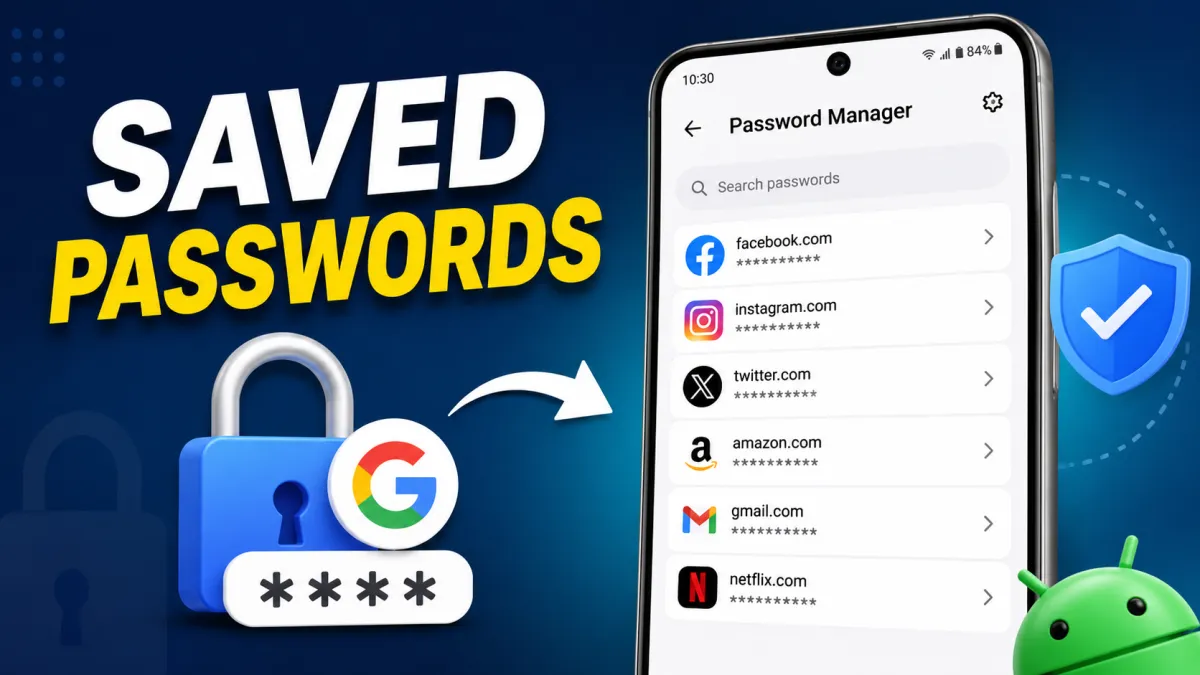
Remembering dozens of passwords for apps and websites can be difficult, which is why Android includes built-in tools to store your login details securely. Instead of memorizing every password, you can save them to your Google Account and access them whenever needed.
Whether you’ve forgotten a login, want to update an old password, or simply check your saved credentials, Android makes the process quick and straightforward. Here’s everything you need to know.
Also read: How to Use the Android Clipboard: A Complete Guide to Faster Copy and Paste
Advertisements
What Are Saved Passwords on Android?
When you sign in to a website or app, Android may ask if you’d like to save your login information. If you agree, the username and password are securely stored in your Google Password Manager.
The next time you visit the same app or website, Android can automatically fill in your login details, saving time and reducing the need to type passwords repeatedly.
Why Use a Password Manager?
Using the built-in password manager offers several benefits beyond convenience. It helps keep your accounts organized while making sign-ins much faster.
Some advantages include:
- Automatic sign-in on supported apps and websites
- Secure storage for usernames and passwords
- Easy access across multiple Android devices
- Password security checks for weak or compromised credentials
- Faster login experience with Autofill support
How to Find Saved Passwords on Android
If you want to see the passwords saved in your Google Account, follow these steps:
- Open Settings on your Android phone.
- Tap Google.
- Select Password Manager.
- Browse the list of saved websites and apps.
- Tap the account you want to view.
- Verify your identity using your fingerprint, PIN, or password.
- Tap the eye icon to reveal the saved password.
Once verified, you’ll be able to view or copy the stored password if needed.
Access Saved Passwords Using Chrome
You can also check your saved passwords through the Chrome browser.
Steps
- Open Google Chrome.
- Tap the three-dot menu.
- Select Settings.
- Tap Password Manager.
- Choose any saved account.
- Authenticate using your device’s security method.
- View, copy, or edit the password.
This method works well if you regularly browse websites using Chrome.
Edit a Saved Password
If you’ve recently changed your password, updating the stored version helps prevent future login issues.
To edit a password:
- Open Google Password Manager.
- Select the saved account.
- Tap Edit.
- Enter the new password.
- Save the changes.
Your updated password will now be used for Autofill on supported apps and websites.
Delete Saved Passwords
If you no longer use a particular account or prefer not to store its login information, you can remove it at any time.
To delete a saved password:
- Open Password Manager.
- Select the account you want to remove.
- Tap Delete.
- Confirm your choice.
Only the saved login is removed. Your actual online account remains unaffected.
Turn Autofill On or Off
Android lets you control whether passwords are filled in automatically.
To manage Autofill:
- Open Settings.
- Go to Google.
- Tap Autofill with Google (or Passwords & Accounts, depending on your device).
- Enable or disable Autofill according to your preference.
Disabling Autofill means you’ll need to enter passwords manually each time you sign in.
Check Password Security
Google Password Manager can scan your saved passwords for potential security risks.
It may alert you if a password is:
- Too weak
- Reused across multiple accounts
- Found in known data breaches
If any issues are detected, changing those passwords as soon as possible can improve your account security.
Tips for Better Password Protection
Good password habits help protect your online accounts from unauthorized access.
Consider these best practices:
- Use a unique password for every account.
- Create long passwords using letters, numbers, and symbols.
- Enable two-factor authentication whenever available.
- Avoid sharing passwords with others.
- Review saved passwords regularly.
- Update important passwords from time to time.
These simple habits can significantly improve your online security.
What If Your Password Isn’t Saved?
If you don’t see a password in Password Manager, it may not have been saved previously.
To avoid this in the future:
- Accept the Save Password prompt when signing in.
- Make sure password saving is enabled in your Google Account settings.
- Update Chrome and Google Play Services to the latest versions for the best compatibility.
Final Thoughts
Android’s built-in password management tools make it easy to store, view, edit, and organize your login credentials in one secure location. With features like Autofill, password security checks, and synchronized access across devices, signing in becomes faster while helping you keep your accounts protected.
For the best experience, use strong, unique passwords and review your saved credentials regularly to ensure your accounts remain secure.

I am a passionate Tech Writer with strong industry experience. I enjoy exploring the latest technological innovations and sharing clear, helpful insights with my audience.
Advertisements