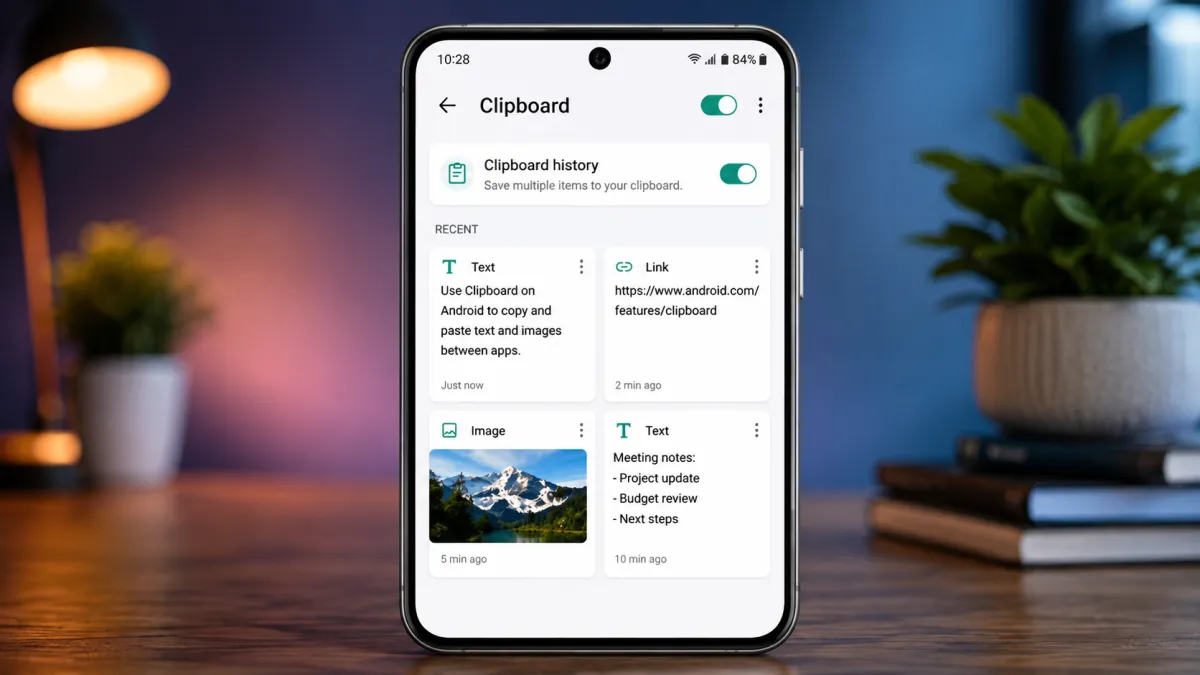
The Android clipboard is a handy feature that makes copying and pasting text, links, and other supported content quick and effortless. Whether you’re saving important notes, sharing website URLs, or moving information between apps, the clipboard helps you complete tasks without retyping everything.
While many Android phones only keep the most recently copied item, popular keyboard apps like Gboard and Microsoft SwiftKey offer clipboard history, allowing you to reuse previously copied text. Some dedicated clipboard manager apps also provide additional organization features for power users.
In this guide, you’ll learn how the Android clipboard works, how to access clipboard history, and tips to use it more efficiently.
Also read? Apple Revises Apple Music and Apple One Subscription Prices in India
What Is the Android Clipboard?
The clipboard is a temporary storage area where Android saves content after you copy or cut it. Once stored, you can paste the content into another app whenever needed.
Depending on your device and keyboard app, the clipboard may store:
- Text
- Website links
- Phone numbers
- Email addresses
- Selected images (supported apps)
- Other compatible content
On most Android devices, copying a new item replaces the previous one unless you’re using a keyboard with clipboard history.
How to Copy and Paste on Android
Copying and pasting content on Android only takes a few seconds.
Step 1: Copy Text
- Open any app, browser, or document.
- Tap and hold the text you want to copy.
- Adjust the selection handles if necessary.
- Tap Copy.
Step 2: Paste the Content
- Open the app where you want to paste the text.
- Tap and hold inside the text field.
- Select Paste.
Your copied text will appear instantly.
How to View Clipboard History with Gboard
If your phone uses Google’s Gboard keyboard, you can access recently copied items directly from the keyboard.
Steps
- Open any app with a typing field.
- Tap the text box to launch Gboard.
- Tap the Clipboard icon.
- Enable Clipboard if it’s your first time using it.
- Browse your recently copied items.
- Tap any item to paste it.
You can also:
- Pin important clipboard entries
- Delete unwanted items
- Keep frequently used text available longer
Pinned content remains stored until you remove it manually.
Access Clipboard History with Microsoft SwiftKey
Microsoft SwiftKey also includes a built-in clipboard feature that stores recently copied text.
To use it:
- Open an app with a text field.
- Launch the SwiftKey keyboard.
- Tap the Clipboard icon.
- View saved clipboard entries.
- Tap any item to paste it.
SwiftKey also lets you:
- Pin frequently used text
- Delete clipboard items
- Sync clipboard content across supported devices (when available)
Android 13 Clipboard Improvements
Android 13 introduced a more user-friendly clipboard experience.
After copying text, you’ll see a small preview near the bottom of the screen that allows you to:
- Preview copied content
- Edit copied text before pasting
- Share copied content directly
- Remove clipboard data if necessary
This feature helps save time when making quick edits.
Benefits of Using Clipboard History
Clipboard history can make everyday tasks much easier.
Some advantages include:
- Reuse copied text without copying it again
- Save frequently used messages
- Quickly paste email addresses
- Store commonly shared links
- Improve productivity while multitasking
It’s especially useful for students, professionals, writers, and content creators.
Organize Multiple Clipboard Items
If you regularly copy several pieces of information, the default clipboard may feel limiting.
Many clipboard manager apps provide advanced features such as:
- Multiple clipboard entries
- Search through clipboard history
- Categorize saved items
- Pin important notes
- Edit copied text
- Share saved content quickly
These tools are ideal for users who frequently work with repeated text or large amounts of information.
Keep Your Clipboard Secure
Because copied content may contain personal information, it’s important to use the clipboard responsibly.
Here are some helpful privacy tips:
- Avoid copying passwords whenever possible.
- Don’t store payment card details in the clipboard.
- Remove sensitive information after use.
- Use a trusted password manager for login credentials.
- Clear old clipboard entries regularly.
- Install only reliable keyboard or clipboard apps.
- Review app permissions before granting clipboard access.
Following these habits helps protect your personal information.
HONOR Magic Portal
Some HONOR smartphones include a feature called Magic Portal, which allows you to quickly move selected text or content into supported apps using simple gestures.
Depending on your device, you may be able to:
- Share selected text instantly
- Open locations in Maps
- Create reminders
- Send content to messaging apps
- Perform actions with fewer taps
Availability varies by device model and software version.
Common Clipboard Problems and Solutions
Clipboard Icon Is Missing
If you can’t find the Clipboard option:
- Check your keyboard settings.
- Enable the clipboard feature.
- Update your keyboard app.
- Restart the keyboard if needed.
Paste Option Doesn’t Appear
If you’re unable to paste:
- Make sure you’ve copied something first.
- Copy the content again.
- Try another app.
- Restart your phone if the issue continues.
Clipboard History Keeps Disappearing
Some keyboard apps automatically delete old clipboard entries after a certain period.
To avoid losing important text:
- Pin frequently used items.
- Save important notes in a dedicated notes app.
- Use a clipboard manager for longer storage.
Clipboard Stops Working
If the clipboard becomes unresponsive:
- Restart your Android device.
- Update your keyboard application.
- Clear the keyboard app cache.
- Reinstall the keyboard if necessary.
These steps solve most clipboard-related issues.
Tips to Get the Most from the Android Clipboard
To make copying and pasting even more efficient:
- Pin commonly used phrases.
- Keep your keyboard updated.
- Organize important notes in a notes app.
- Use clipboard history instead of copying the same text repeatedly.
- Clear sensitive clipboard data after use.
Small habits like these can improve your daily productivity.
Final Thoughts
The Android clipboard is one of the simplest yet most valuable productivity features available on your smartphone. Whether you’re copying text, sharing links, or saving frequently used information, it helps you work faster with fewer taps.
For an even better experience, consider using Gboard or Microsoft SwiftKey, both of which offer clipboard history and extra management features. If you frequently copy multiple items, a trusted clipboard manager can provide additional organization and convenience. Just remember to remove sensitive information regularly to keep your data secure.

I am a passionate Tech Writer with strong industry experience. I enjoy exploring the latest technological innovations and sharing clear, helpful insights with my audience.