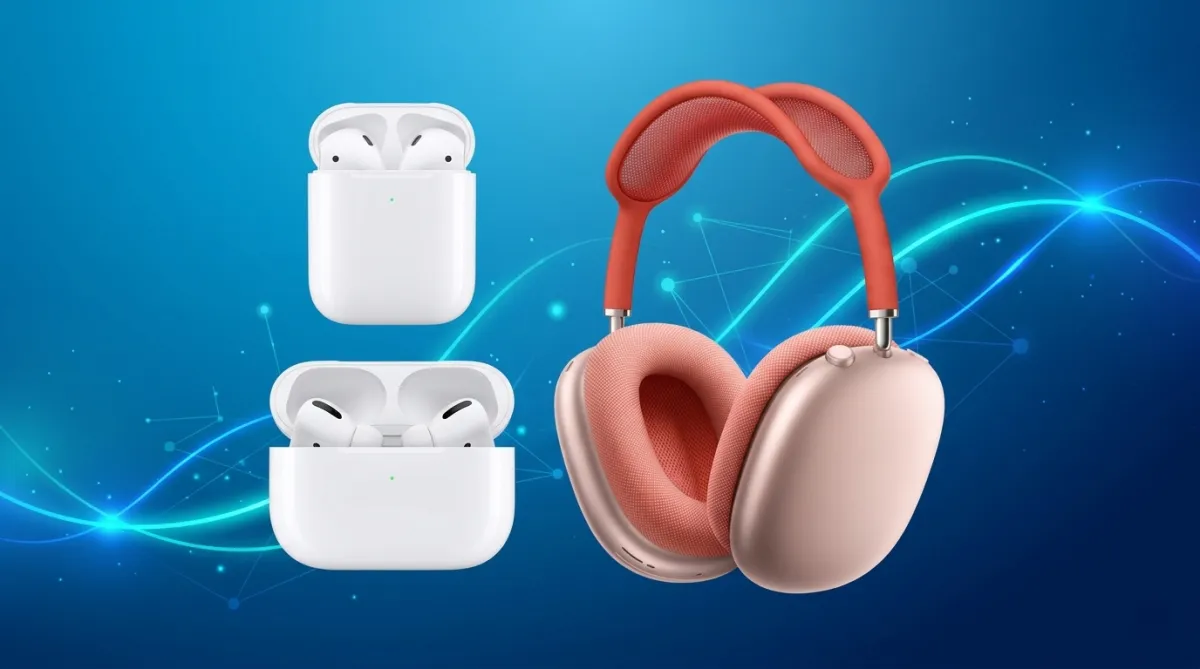
If you’re using wireless earbuds from Apple, keeping them updated is one of the simplest ways to ensure smooth performance, better sound quality, and access to new features. Devices like AirPods, AirPods Pro, and AirPods Max receive firmware updates periodically, but the process works a bit differently compared to regular software updates.
Let’s break it down in a clear and practical way so you know exactly how it works and what to do if your AirPods don’t update automatically.
Do AirPods Update Automatically?
Yes, in most situations, you don’t need to do anything manually. Firmware updates are installed silently in the background when certain conditions are met.
Typically, updates happen when:
- Your AirPods are charging
- They are within Bluetooth range of a connected device like an iPhone, iPad, or Mac
- The connected device has internet access
There’s no notification or “update button,” which can make it feel like nothing is happening—but the update process is designed to be seamless.
How to Manually Encourage a Firmware Update
If you suspect your AirPods haven’t updated yet, you can follow a few simple steps to help trigger the process:
- Place your AirPods inside their charging case
- Connect the case to power using a cable or wireless charger
- Ensure your connected device:
- Is connected to Wi-Fi
- Has Bluetooth turned on
- Has at least 50% battery
- Keep your AirPods close to your device
- Leave the case closed and wait for about 10–15 minutes
There’s no confirmation message, so after waiting, you’ll need to check the firmware version to see if the update has been applied.
Important: Without an Apple device, firmware updates cannot be installed on AirPods.
Updating AirPods Max: What’s Different?
The process for AirPods Max is slightly different since they don’t use a charging case.
Here’s what you need to do:
- Connect the AirPods Max to power using a charging cable
- Keep them near your iPhone, iPad, or Mac
- Make sure your device has Wi-Fi and Bluetooth enabled
- Wait around 30 minutes
After that, you can check whether the firmware has been updated.
How to Check Your AirPods Firmware Version
Once you’ve waited for the update process, it’s a good idea to verify the current firmware version.
On iPhone or iPad
- Open Settings
- Tap on Bluetooth
- Find your AirPods and tap the (i) icon next to them
- Scroll down to see the firmware version under “About”
On Mac
- Click the Apple logo in the top-left corner
- Open System Settings
- Go to Bluetooth
- Locate your AirPods and click the (i) icon
- View the firmware version in the details panel
Make sure your device is running the latest version of its operating system for accurate information.
Why Firmware Updates Matter
Firmware updates may not look exciting, but they often bring meaningful improvements such as:
- Better audio performance
- Improved battery efficiency
- Stronger connectivity
- Bug fixes and stability improvements
- New features (depending on the model)
Recent updates have introduced enhancements like improved voice clarity, smarter audio switching, and features such as automatic pause detection and better call quality.
These updates are part of Apple’s effort to keep devices working smoothly with newer versions of iOS, iPadOS, and macOS.
Latest Firmware Versions (Reference)
Firmware versions vary depending on the AirPods model. Some of the recent versions include:
- AirPods Pro (3rd gen): 8B40
- AirPods Pro (2nd gen): 8B39
- AirPods Pro (1st gen): 6F21
- AirPods (2nd & 3rd gen): 6F21
- AirPods 4: 8B39
- AirPods Max (USB-C): 7E108
- AirPods Max (Lightning): 6F25
- AirPods (1st gen): 6.8.8
For the most accurate and updated list, it’s always best to check Apple’s official support page.
Final Thoughts
While the update process for AirPods runs quietly in the background, understanding how it works can save you confusion when things don’t seem to update right away. A quick check of your firmware version ensures your device is running optimally.
Keeping your AirPods updated isn’t just about new features—it’s also about maintaining performance, stability, and a reliable listening experience over time.

I am a passionate Tech Writer with strong industry experience. I enjoy exploring the latest technological innovations and sharing clear, helpful insights with my audience.
Advertisements