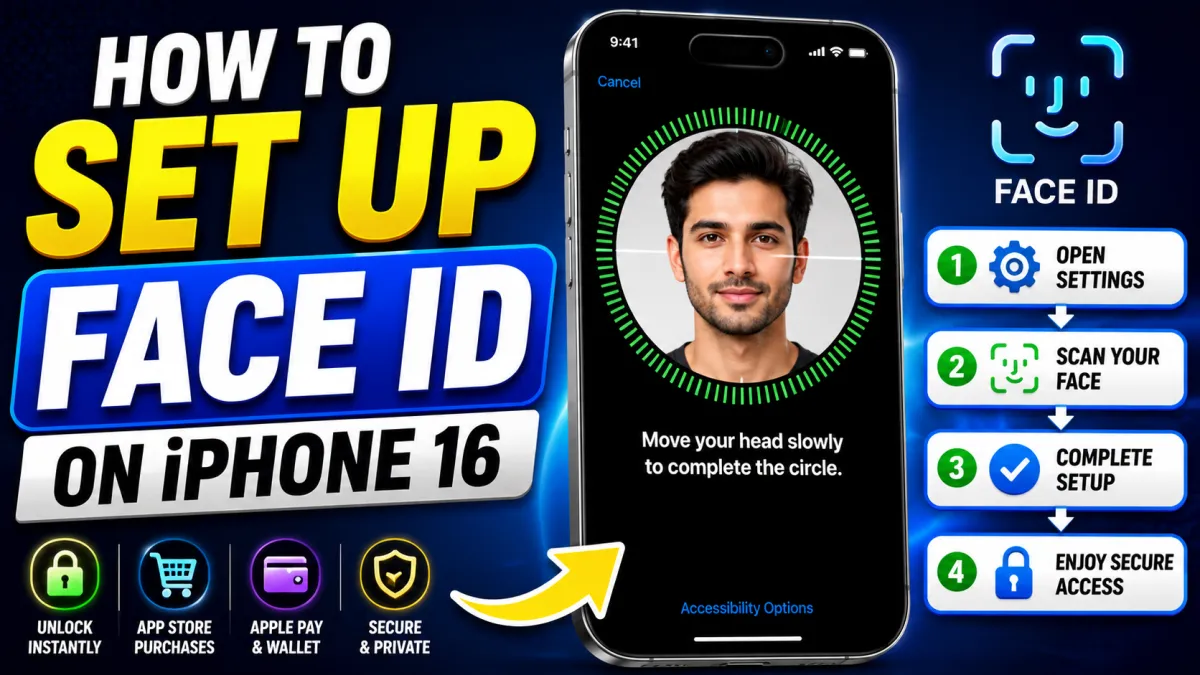
Face ID makes using your iPhone 16 faster and more convenient while helping protect your personal information. With a quick look at your phone, you can unlock it, approve purchases, use Apple Pay, and sign in to compatible apps without repeatedly entering your passcode.
If you are setting up a new iPhone 16, the process only takes a few minutes. Here’s how to get started.
Also read: How to Transfer Photos from iPhone 16 to Your Laptop
Quick Steps
To set up Face ID:
- Open Settings.
- Tap Face ID & Passcode.
- Enter your iPhone passcode.
- Select Set Up Face ID.
- Follow the instructions to complete the first scan.
- Complete the second scan.
- Choose the features you want to use with Face ID.
Steps to Set Up Face ID on iPhone 16
Step 1: Open Settings
Unlock your iPhone and open the Settings app.
Scroll through the options and tap Face ID & Passcode. You will need to enter your device passcode before accessing these settings.
This extra step helps keep your security settings protected.
Step 2: Choose Set Up Face ID
Tap Set Up Face ID to begin.
Your iPhone will display a screen with a circular frame. This frame helps you position your face correctly during the setup process.
If Face ID was previously set up on the device, you may need to tap Reset Face ID before registering your face again.
Step 3: Position Your Face
Hold your iPhone naturally in front of you and place your face inside the circle on the screen.
For a smooth setup:
- Make sure your face is clearly visible.
- Avoid covering the front sensor area.
- Look toward the display.
- Hold the phone at a comfortable distance.
Once your face is detected, the scanning process will begin.
Step 4: Complete the First Scan
You will be asked to gently move your head in a circular motion.
As you move, the progress circle on the screen will gradually fill. This allows your iPhone to capture different angles of your face.
Move slowly and naturally. If the scan does not capture a particular angle, follow the instructions shown on the screen.
Step 5: Complete the Second Scan
After finishing the first scan, tap Continue.
You will need to repeat the head movement for a second scan. This additional scan helps Face ID recognize your face more reliably from different angles.
When the process is complete, your iPhone will confirm that Face ID is ready to use.
Choose Where You Want to Use Face ID
After setup, you can decide which features should use Face ID.
Depending on your settings and supported services, options may include:
- iPhone Unlock
- App Store & iTunes Purchases
- Wallet & Apple Pay
- Password AutoFill
- Other supported apps
You can turn these options on or off at any time by returning to Settings > Face ID & Passcode.
How to Test Face ID
Testing Face ID is simple.
- Lock your iPhone.
- Wake the screen by pressing the Side button or tapping the display.
- Look at your iPhone.
- Wait for the lock icon to open.
- Swipe up to access the Home Screen.
You can also test Face ID when downloading an app or using Apple Pay.
Set Up Face ID During Initial Setup
If your iPhone 16 is new, Apple normally gives you the option to configure Face ID while setting up the device.
You can complete the face scan at that time or skip it and set it up later through the Settings app.
The steps remain the same in both cases.
How to Reset Face ID
If Face ID is not recognizing you properly, resetting it can help.
Go to:
Settings > Face ID & Passcode > Reset Face ID
After resetting, tap Set Up Face ID and complete the scanning process again.
Add an Alternate Appearance
Your iPhone may allow you to add an alternate appearance for better recognition in different situations.
To check this option:
Settings > Face ID & Passcode > Set Up an Alternate Appearance
This can be useful if your appearance sometimes looks noticeably different.
However, Face ID is generally designed to adapt to gradual changes in your appearance over time.
Does Face ID Work with Glasses?
Face ID works with many types of prescription glasses.
If you normally wear glasses, you can continue using them after completing the setup. If recognition seems inconsistent, make sure the front sensor area is clean and your face is clearly visible.
Some heavily tinted sunglasses may affect recognition.
Does Face ID Work in the Dark?
Yes, Face ID is designed to work in low-light and dark environments. You do not need to depend on normal room lighting for facial recognition.
What If Face ID Does Not Work?
If you experience problems, try the following solutions.
Restart Your iPhone
A simple restart can fix temporary software issues.
Turn your iPhone off, wait a few seconds, and then turn it back on.
Clean the Front Sensor Area
Dust, dirt, or certain screen protectors may interfere with the front sensor system.
Carefully clean the area around the front camera and sensors.
Make Sure Nothing Covers Your Face
Face ID may have difficulty recognizing you if important parts of your face are blocked.
Look directly at the screen and make sure the sensor area is not covered.
Reset Face ID
If recognition continues to fail, reset Face ID and register your face again.
Go to:
Settings > Face ID & Passcode > Reset Face ID
Then complete a fresh setup.
Update Your iPhone
Keeping iOS updated can help resolve software-related problems.
Open:
Settings > General > Software Update
Install an available update and check Face ID again afterward.
Face ID Setup Is Not Completing
If the scanning process keeps stopping, check the following:
- Your face is positioned inside the frame.
- The front sensors are clean.
- You are moving your head slowly.
- Nothing is blocking the sensor area.
Try restarting your iPhone before attempting the setup again.
“Face ID Is Not Available” Message
If your iPhone displays a message saying that Face ID is unavailable, first restart the device and check for an iOS update.
If the message continues to appear, the problem could be related to the device’s hardware or sensor system. In that situation, contacting Apple Support or an authorized service provider may be necessary.
Helpful Tips for Better Face ID Performance
- Keep the front sensor area clean.
- Hold your iPhone at a natural viewing distance.
- Look toward the screen when unlocking.
- Avoid covering the sensors with your hand.
- Use a strong passcode as a backup security method.
- Keep your iPhone updated with the latest available iOS version.
Frequently Asked Questions
Do I Need a Passcode to Use Face ID?
Yes. Your iPhone requires a passcode because it acts as an important backup security method.
Can I Use Face ID for App Purchases?
Yes, you can enable Face ID for supported App Store and purchase authentication options.
Can Face ID Be Used with a Mask?
Face ID features and mask-related options can depend on your iPhone model and iOS version. Check the available settings under Face ID & Passcode on your device.
Why Is Face ID Unlocking Slowly?
For better recognition, look toward the display and hold your iPhone at a comfortable distance. Also, make sure the front sensor area is clean and unobstructed.
Final Thoughts
Setting up Face ID on an iPhone 16 is quick and straightforward. Once configured, it provides a convenient way to unlock your device, approve purchases, and access supported apps with a simple glance.
If you experience recognition problems, restarting the iPhone, cleaning the sensor area, or resetting Face ID can often help. With Face ID properly configured and a strong passcode enabled, you can enjoy both convenience and added security while using your iPhone.

I am a passionate Tech Writer with strong industry experience. I enjoy exploring the latest technological innovations and sharing clear, helpful insights with my audience.