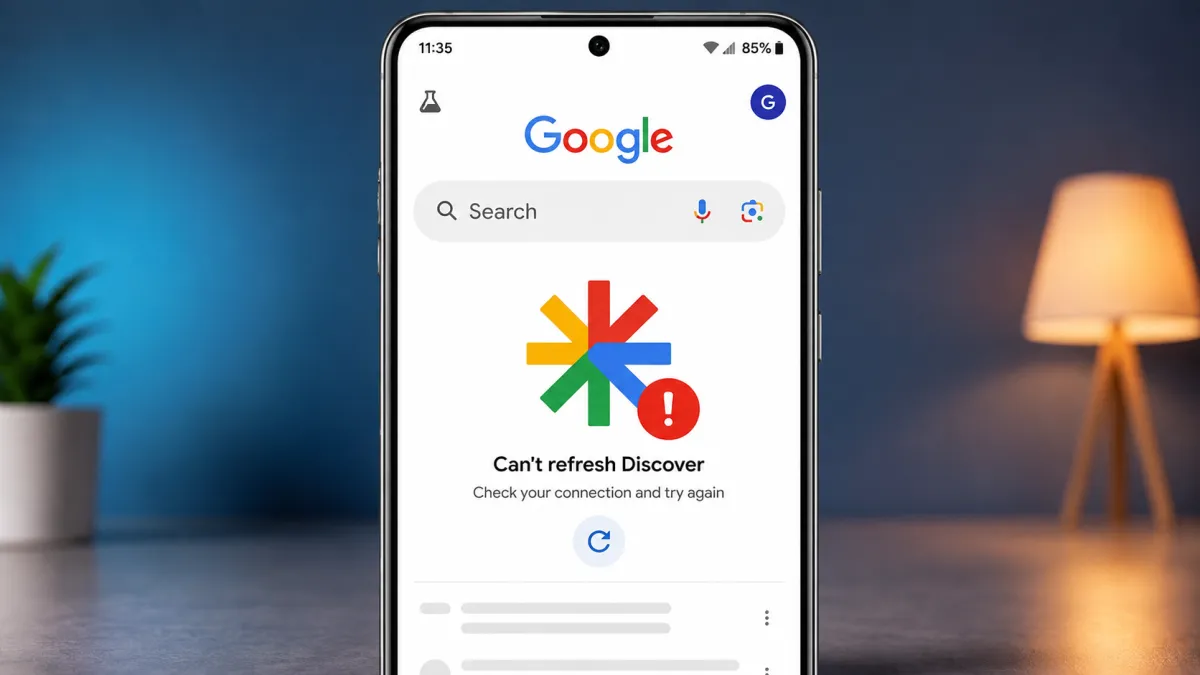
Google Discover is a convenient way to see news, sports updates, weather information, and other stories based on your interests. It normally appears in the Google app or on the left side of the Home screen on supported Android phones.
Sometimes, however, Discover may stop showing stories, remain stuck while loading, display an empty feed, or show content that doesn’t match your interests. The problem can be caused by a disabled setting, outdated Google app, cache issues, restricted background activity, or account preferences.
Here are some practical solutions you can try to get Google Discover working again.
Also read: How to Block Ads on Android Phones: Easy Ways to Reduce Unwanted Ads
Quick Fixes to Try First
Before changing any settings, try these basic checks:
- Restart your Android phone.
- Make sure your internet connection is working.
- Update the Google app from the Play Store.
- Check whether Discover is enabled.
- Clear the Google app’s cache.
- Make sure the Google app can use background data.
- Check whether Battery Saver or a data restriction is preventing updates.
If Discover still doesn’t work, move on to the steps below.
1. Check Whether Discover Is Turned On
Discover may simply be disabled on your phone.
Open the Google app, tap your profile picture, and look for the app’s settings. Depending on your Android or Google app version, the Discover option may be available under General or another settings section.
Make sure Discover is enabled.
On some Android phones, Discover can also be controlled through the Home screen settings. Press and hold an empty area of the Home screen and look for options related to the left-most screen, Google Discover, or the feed.
The exact menu names can differ between phone manufacturers.
Samsung Users
Samsung phones may show Samsung News or another feed instead of Google Discover, depending on the One UI version and device settings.
If your phone provides an option to choose the feed shown on the left-most Home screen, check whether Google Discover is available and selected.
2. Check Your Internet Connection
Discover needs an active internet connection to load new stories.
Try opening a few websites or using another online application. If other services are also having trouble, the problem may be related to your Wi-Fi or mobile data rather than Discover itself.
You can try:
- Turn Wi-Fi off and use mobile data.
- If you’re already using mobile data, connect to a reliable Wi-Fi network.
- Turn Airplane Mode on for a few seconds and then turn it off.
- Restart your router if the problem occurs only on Wi-Fi.
Once your connection is stable, open the Google app again and check the feed.
3. Clear the Google App Cache
Temporary files stored by the Google app can occasionally cause loading or display problems.
To clear the cache:
- Open Settings.
- Tap Apps or App management.
- Find and select Google.
- Open Storage or Storage & cache.
- Tap Clear cache.
Now reopen the Google app and check Discover.
What About Clearing Storage?
If clearing the cache doesn’t help, your phone may also offer Clear storage or Clear data.
This is a more extensive step because it can reset information stored locally by the Google app. Therefore, try clearing the cache first and use the storage/data option only if necessary.
4. Update the Google App
An outdated Google app can contain bugs or compatibility problems that affect Discover.
Open the Google Play Store, search for the Google app, and check whether an update is available.
Install the latest available update and then restart your phone.
You should also keep Google Play services and Android itself updated when updates are available.
5. Allow Background Data
If background data is restricted, the Google app may have difficulty refreshing content automatically.
The setting can usually be found by going to:
Settings → Apps → Google → Mobile data & Wi-Fi
Look for options such as Background data or Allow background data usage and make sure they are enabled.
The exact wording may vary depending on your phone’s manufacturer and Android version.
6. Check Battery Restrictions
Aggressive battery-saving settings can prevent some apps from working normally in the background.
If Discover only updates when you manually open the Google app, check whether the Google app has been placed under a restricted battery mode.
Go to the Google app’s App info page and look for Battery or Battery usage. If your phone offers different background activity options, avoid setting the Google app to an unnecessarily restrictive mode.
You can also temporarily disable Battery Saver and check whether Discover starts updating normally.
7. Check Your Google Account
Discover uses your Google account activity and preferences to personalize the content it displays.
Open the Google app and tap your profile picture to confirm that you’re using the correct Google account.
If you have multiple Google accounts on your phone, switching between them can help determine whether the issue is limited to one account.
You can also try signing out of the Google app where your device allows it, or temporarily using the Google app without an account, to see whether Discover loads correctly.
8. Fix an Empty or Irrelevant Discover Feed
Sometimes Discover isn’t technically broken—the problem is simply that the feed isn’t showing content you’re interested in.
You can train the feed by interacting with the stories you see.
For unwanted recommendations:
- Tap the three-dot menu on a story.
- Select options such as Not interested or Don’t show stories from this source, when available.
- Manage topics and interests offered by Google.
- Follow topics that you actually want to see.
- Review your Google activity and personalization settings.
Over time, these choices can help make Discover recommendations more relevant.
9. Check Google App Permissions
If the Google app has restricted permissions or system access, some features may not work as expected.
Open:
Settings → Apps → Google → Permissions
Review the available permissions and make sure nothing important has been unnecessarily blocked.
Don’t enable permissions simply because they are listed. Only allow permissions that are appropriate for the features you use.
10. Reset App Preferences as a Last Resort
If several Google-related apps are behaving strangely, resetting app preferences may help restore certain default settings.
On many Android phones, the option can be found under:
Settings → System → Reset options → Reset app preferences
The location can be different depending on the manufacturer.
Resetting app preferences generally doesn’t delete your personal photos, videos, or documents. However, it can restore default app settings and reset certain permissions, disabled apps, notification preferences, and default-app choices.
Because of this, use the option only after trying the simpler fixes.
If Google Discover Still Doesn’t Work
If none of the above solutions help, the issue may not be specific to your phone.
Google can occasionally experience service-side problems, or a particular version of the Google app may have a temporary bug. In such cases, changing multiple settings on your phone may not solve the problem immediately.
You can try using the Google app again later, check whether an app update becomes available, and test Discover on another device using the same Google account if possible.
Final Thoughts
Google Discover usually requires only a few basic settings to work properly. Start by checking your internet connection and making sure Discover is enabled. If that doesn’t solve the problem, clearing the Google app cache, updating Google apps, allowing background data, and reviewing battery restrictions are good next steps.
If the feed loads but shows unwanted recommendations, use Google’s personalization controls to adjust the topics and sources you see.
For persistent problems, checking your Google account settings or resetting app preferences can be useful. Since Android menus vary between manufacturers, the exact names and locations of these settings may be slightly different on your phone.

I am a passionate Tech Writer with strong industry experience. I enjoy exploring the latest technological innovations and sharing clear, helpful insights with my audience.