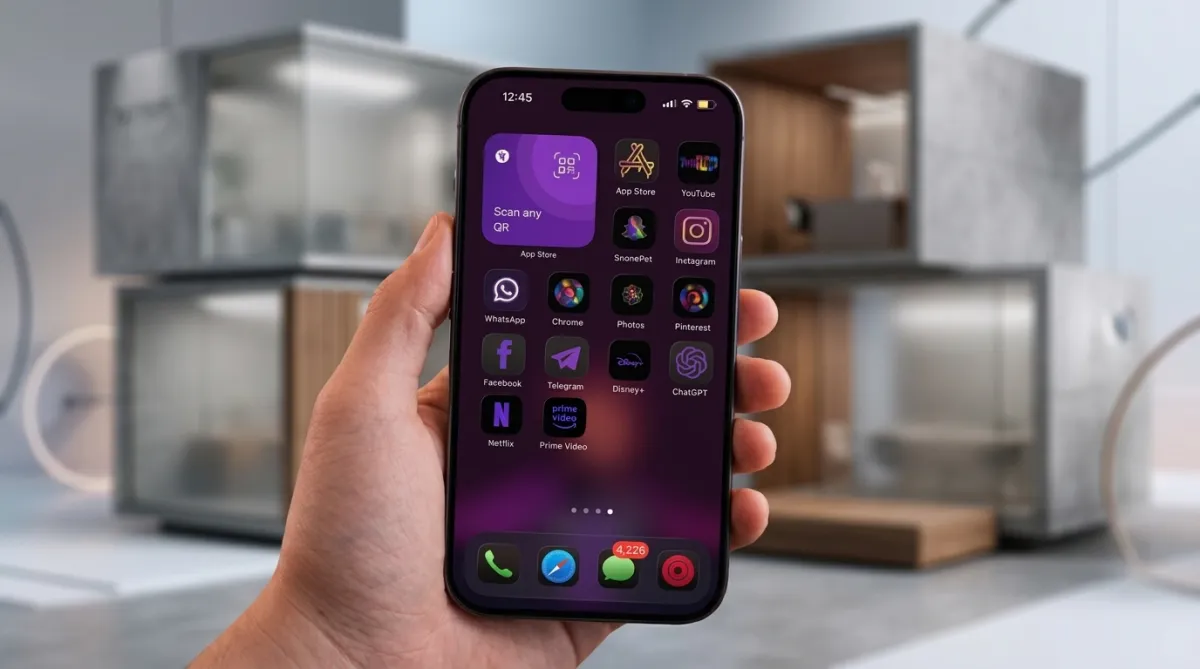
If your iPhone still looks the same as it did when you first set it up, you’re not alone. Most users stick with the default layout—rows of familiar apps like Instagram, WhatsApp, and Safari—without ever thinking about changing it.
While recent updates such as iOS 18 offer minor visual tweaks, they don’t fully transform how your home screen feels. If you’re looking for something more personalised, there’s a simple approach that can make a noticeable difference.
A Smarter Way to Personalise App Icons
Instead of relying on default icons, you can redesign your home screen using the built-in Shortcuts app.
This method doesn’t technically replace the original app icons. What it does is create a shortcut that launches the app, allowing you to assign a custom image as its icon. Once placed on your home screen, it appears just like a regular app.
The result? A clean, consistent design that reflects your personal style rather than the standard layout.
How to Create Custom App Icons on iPhone
Before you begin, collect the icon images you want to use. You can:
- Download ready-made icon packs
- Find inspiration on platforms like Pinterest
- Design your own icons
Once your icons are ready, follow these steps:
- Open the Shortcuts app
- Tap the + icon to create a new shortcut
- Select Add Action, then choose Open App
- Tap App and select the app you want to customise
- Tap the dropdown arrow at the top and choose Add to Home Screen
- Rename the shortcut as you want it displayed
- Tap the icon preview → Choose Photo
- Select your custom icon image and adjust it if needed
- Tap Add
Your new custom icon will now appear on the home screen. You can repeat the process for other apps and remove the original icons to avoid duplication.
What Changes After Customisation?
Once you set up a few icons, the difference becomes quite noticeable.
- The home screen starts to feel organised and visually consistent
- Icons match each other instead of appearing random
- You naturally keep only important apps on the main screen
- Less-used apps can be moved to the App Library
Over time, your phone feels cleaner and easier to navigate—not just better-looking.
A Small Limitation to Keep in Mind
There is one minor drawback.
When you tap a custom icon, the shortcut runs briefly before opening the app. This may cause a slight delay. It’s usually quick, and most people get used to it after a while.
To keep things smooth, it’s better to customise only the apps you use regularly.
Simple Tips for a Better Layout
If you want your home screen to look polished, keep these practical points in mind:
- Stick to one icon theme for a consistent appearance
- Choose a wallpaper that complements your icons
- Avoid overcrowding—keep only essential apps visible
- Use spacing wisely to make the layout easy to scan
- Arrange apps based on how you use your phone daily
- Build your setup gradually instead of changing everything at once
Final Thoughts
Customising your home screen might seem like a small change, but it can completely shift how your device feels. Instead of a standard layout, your iPhone becomes something that reflects your preferences and usage style.
It does take a bit of effort in the beginning, but once everything is set up, the result feels worth it every time you unlock your phone.

I am a passionate Tech Writer with strong industry experience. I enjoy exploring the latest technological innovations and sharing clear, helpful insights with my audience.
Advertisements