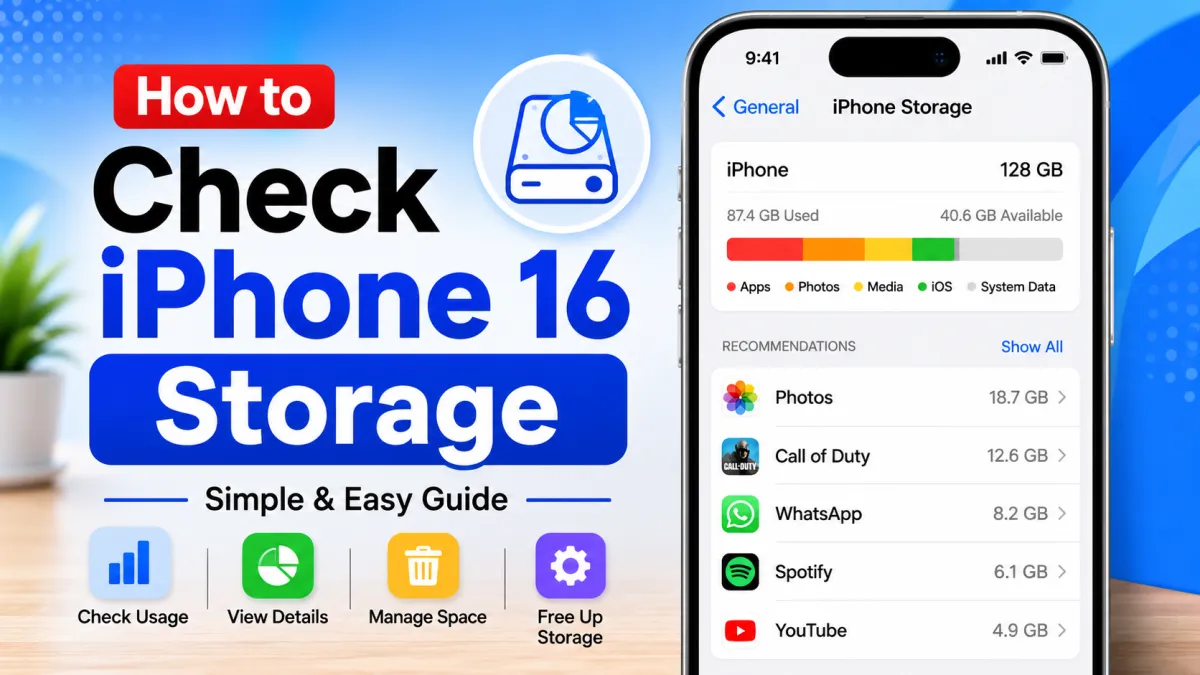
Running out of storage on your iPhone 16 can become frustrating, especially when you want to install a new app, download an iOS update, or save more photos and videos. Before deleting anything, it helps to see exactly where your storage is being used.
The good news is that the iPhone has a built-in storage management section that gives you a detailed breakdown of your device. You can check how much space is available, find the apps using the most storage, and get recommendations for freeing up space.
Here’s everything you need to know about checking and managing storage on an iPhone 16.
Also read: How to Find and Remove Malware from an Android Phone
Quick Steps to Check iPhone 16 Storage
You can view your storage information in just a few taps:
- Open Settings.
- Tap General.
- Select iPhone Storage.
- Give the device some time to calculate the storage usage.
- Review the storage graph and the list of apps and data.
The storage page provides a useful overview of what is occupying space on your iPhone.
How to See Storage Usage on iPhone 16
1. Open Settings
Start by unlocking your iPhone and opening the Settings app.
If you don’t see the Settings icon on your Home Screen, swipe down to open Spotlight Search and type Settings.
2. Select General
Scroll through the Settings menu and tap General.
This section contains several device-related options, including software updates, AirDrop, device information, and storage management.
3. Open iPhone Storage
Look for iPhone Storage and tap it.
Your iPhone will begin calculating how much space is being used. Depending on the amount of data stored on the device, this process may take a little time.
4. Check the Storage Breakdown
After the calculation is complete, you’ll see a visual summary of your storage.
The page can show information such as:
- Total device capacity
- Space currently being used
- Available storage
- Storage categories
- Apps arranged according to their storage usage
This makes it easier to identify what’s consuming most of your available space.
5. Check Individual Apps
Tap an app from the storage list to see how much space it occupies.
Depending on the app, you may have options such as:
Offload App: Removes the app itself while keeping its documents and data so you can reinstall it later.
Delete App: Removes the app along with its associated data from the iPhone.
If you’re trying to free up space without completely removing an app’s data, Offload App can be a useful option.
Check Your iPhone’s Total Capacity
There’s another place where you can find basic information about your iPhone’s storage capacity.
Go to:
Settings → General → About
Here you’ll find information about your iPhone, including its capacity. However, this section doesn’t provide the same detailed breakdown as the iPhone Storage page.
Check iPhone Storage From a Computer
You can also connect your iPhone to a computer if you prefer managing the device from there.
On Mac
Connect your iPhone to your Mac and open Finder. Select your iPhone from the sidebar to view information about the device.
On Windows
Depending on your setup, you can use the Apple Devices app or iTunes to access information about your connected iPhone.
This can be useful if you’re having difficulty accessing the storage section directly on the phone.
What If iPhone Storage Takes Too Long to Load?
Sometimes the storage page may take longer than expected to display the information. This can happen when your iPhone contains a large amount of data.
For example, the calculation may take longer if you have:
- A large photo and video library
- Many installed applications
- Large downloaded files
- A significant amount of offline content
Give the iPhone some time to complete the calculation before assuming there’s a problem.
If it continues to remain stuck, restarting the iPhone and checking again can help.
iPhone Storage vs. iCloud Storage
It’s important not to confuse your device storage with iCloud storage.
iPhone storage refers to the physical storage built into your iPhone. It is used for apps, photos, videos, messages, system files, and other content stored directly on the device.
iCloud storage is cloud-based storage associated with your Apple Account. It’s commonly used for things such as backups, photos, documents, and synced data.
To check your iCloud usage:
- Open Settings.
- Tap your name or Apple Account at the top.
- Select iCloud.
- Review the storage information shown there.
How to Free Up Space on iPhone 16
Once you’ve checked your storage, you can start removing unnecessary content.
Remove Apps You Don’t Use
Open the iPhone Storage section and look through your installed apps. If you haven’t used an app for a long time, consider deleting it.
For apps you may want to use again later, Offload App can save space while retaining the app’s data.
Delete Large Videos and Photos
Photos and videos can quickly consume several gigabytes of storage. Review your library and remove files you no longer need.
Remember to check Recently Deleted if you need to permanently remove deleted photos and videos and recover their storage space.
Remove Old Downloads
Downloaded movies, music, documents, and other offline content can take up significant space.
Check individual apps for downloaded files and remove anything you no longer need.
Review Messages and Attachments
Large photos, videos, and other attachments in messaging apps can gradually consume storage.
The iPhone Storage section can help you identify whether messages are taking up a significant amount of space.
Common iPhone Storage Problems
The Storage Page Is Blank
If the iPhone Storage screen doesn’t display information correctly, try restarting your iPhone. You should also check whether an iOS update is available.
After restarting, return to:
Settings → General → iPhone Storage
and allow the device some time to calculate the data again.
Storage Numbers Don’t Look Right
Storage calculations may change while iOS analyzes your files and categories.
Wait for the storage report to finish loading completely. If the information still looks unusual afterward, restart the device and check again.
You Can’t Find iPhone Storage
The option is located under:
Settings → General → iPhone Storage
You can also use the search field within Settings and search for iPhone Storage.
One App Is Taking Up Too Much Space
Tap the app from the storage list to see its details.
Some apps, particularly social media, messaging, and streaming services, can accumulate downloaded media and other data over time. Check the app’s own settings for options to remove offline or downloaded content.
Frequently Asked Questions
How do I check storage on an iPhone 16?
Open Settings → General → iPhone Storage. You’ll see the amount of used and available space along with a breakdown of storage usage.
Why is my iPhone storage almost full?
Apps, photos, videos, downloaded files, messages, and system data can all contribute to storage usage. The iPhone Storage section shows which categories and apps are consuming the most space.
Does deleting an app free up storage?
Yes. Deleting an app removes the app and its associated data from the device. If you want to keep the app’s documents and data, consider using Offload App instead.
Is iCloud storage the same as iPhone storage?
No. iPhone storage is the physical capacity of your device, while iCloud storage is online storage associated with your Apple Account.
How much free storage should I keep?
There’s no single amount that every iPhone user needs to maintain. However, keeping some free space is useful for installing updates, saving new files, and avoiding situations where the device becomes completely full.
Final Thoughts
Checking storage on an iPhone 16 doesn’t require any additional app or software. Simply open Settings, go to General, and select iPhone Storage to see what’s taking up space.
Once you understand your storage usage, you can remove unwanted apps, delete large files, clear out old downloads, or use the Offload App feature when appropriate. Checking the storage page occasionally can help you avoid unexpected low-storage warnings and keep enough room available for the things you actually need.

I am a passionate Tech Writer with strong industry experience. I enjoy exploring the latest technological innovations and sharing clear, helpful insights with my audience.