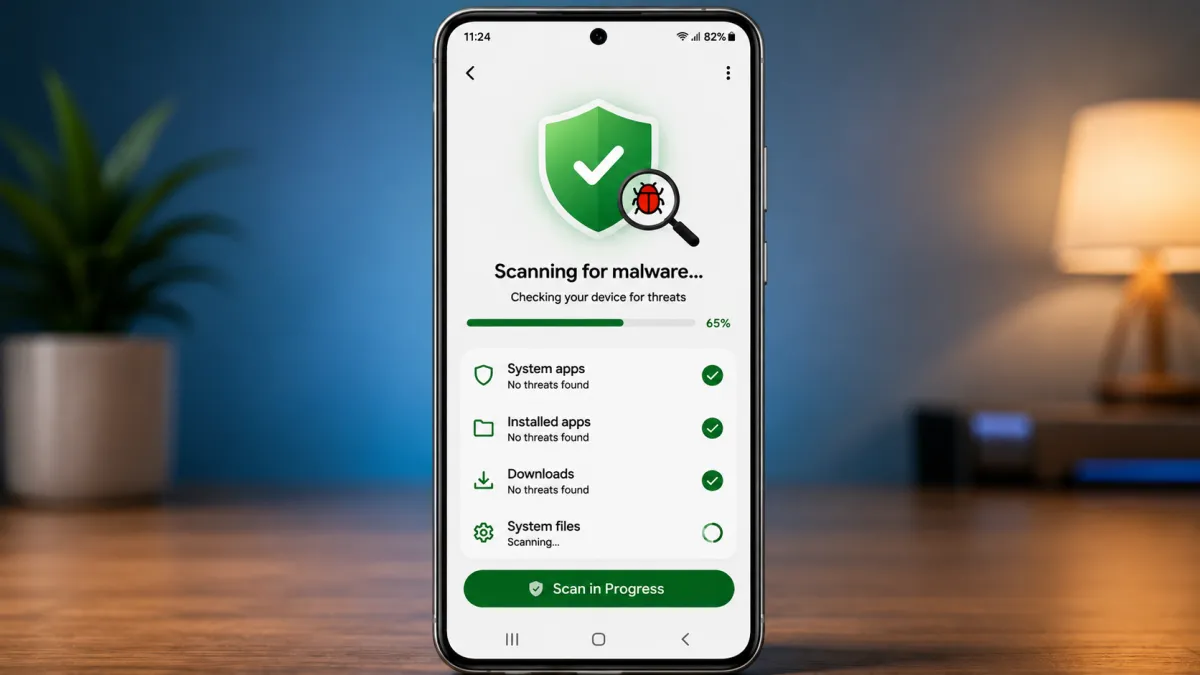
Your Android phone can sometimes behave strangely because of a problematic or malicious app. Unexpected advertisements, unusual battery drain, poor performance, or unfamiliar apps can all be reasons to take a closer look at your device.
Not every unusual symptom means your phone has malware, but checking for suspicious software is a good security habit. Fortunately, you can perform several checks yourself before considering more drastic measures.
Also read: Google Discover Not Working on Android? Here’s How to Fix It
Quick Overview
- Look for unusual changes in your phone’s behavior.
- Run a security scan using a reputable Android security tool.
- Review installed apps and remove anything suspicious.
- Check app permissions and browser notifications.
- Consider a factory reset only when other solutions fail.
Check for Common Malware Warning Signs
Malicious software can operate quietly in the background, so there may not always be an obvious warning. However, certain changes can indicate that an unwanted app needs attention.
Some things to watch for include:
- Your phone suddenly becomes slower than usual.
- The battery starts draining unusually quickly.
- Mobile data usage increases without explanation.
- You see frequent pop-ups outside normal apps or websites.
- Your browser redirects you to unfamiliar pages.
- Unknown applications appear on your device.
- Apps repeatedly crash or behave strangely.
- The phone becomes warm even when you’re barely using it.
- You receive suspicious notifications claiming that your phone has a virus.
- Storage space decreases unexpectedly.
These signs can also be caused by normal software problems, aging hardware, or background processes, so don’t assume malware is definitely responsible.
Run a Security Scan
A security scan is a convenient way to check whether an installed application or downloaded file has been flagged as potentially harmful.
Start with Android’s built-in security features, such as Google Play Protect, which checks apps for potentially harmful behavior.
To run a scan:
- Open the Google Play Store.
- Tap your profile picture.
- Select Play Protect.
- Start a scan if one is not already running.
- Follow the instructions if a potentially harmful app is detected.
You can also use a reputable mobile security application if you want additional scanning features. Download security software from the Google Play Store or the developer’s official website rather than from unfamiliar download pages.
Review Your Installed Apps
A manual app check can be useful, especially if the problem started after installing something new.
Open Settings and go to the section that lists your installed applications. The exact menu name can differ between Android phones.
Pay particular attention to apps that:
- You don’t remember installing.
- Have unfamiliar names or icons.
- Were installed around the time the problem started.
- Ask for permissions that don’t seem necessary for their function.
- Continue running or displaying content when you aren’t using them.
If you identify an app you no longer need, uninstalling it may resolve the problem.
Remove a Suspicious App
Most unwanted applications can be removed normally through Android’s app settings.
Open the app’s information page and select Uninstall. Confirm the removal and then restart your phone.
If the uninstall option is unavailable, the application may have been granted a special permission. Check your phone’s Security, Device admin apps, or similar settings and review which applications have administrator access.
Only disable permissions for an app you recognize as suspicious. Once its special access has been removed, try uninstalling it again.
Menu names can vary depending on your phone manufacturer and Android version.
Check Browser Notifications and Pop-Ups
Not every unwanted alert comes from malware. Sometimes a website has been given permission to send notifications through your browser.
If you keep receiving strange alerts, open your browser’s Settings and review its notification or site-permission settings. Remove notification access for websites you don’t recognize.
You should also avoid tapping suspicious “Your phone is infected” messages or fake security warnings. These alerts can be designed to convince you to install unwanted software.
Review App Permissions
Checking permissions can provide another useful security check.
Go to Settings > Apps and select an application to review its permissions. Depending on the app, you may see access to the camera, microphone, location, contacts, files, or other information.
If an app has access that doesn’t make sense for what it does, consider denying the permission or uninstalling the application if you don’t need it.
Avoid disabling important permissions blindly, since some legitimate apps require specific access to work correctly.
Keep Android and Your Apps Updated
Software updates often include security improvements as well as bug fixes. Keeping your phone updated can therefore reduce security risks and resolve certain performance problems.
Check your phone’s Software Update section and install available updates. You should also update apps through the Google Play Store.
It’s equally important to avoid installing apps from unknown sources unless you understand the risks and have a specific reason to do so.
What If the Problem Doesn’t Go Away?
If suspicious behavior continues after removing questionable apps and checking your settings, you may need to take a more thorough approach.
Start by backing up important photos, documents, contacts, and other files. Then review your recently installed applications and remove anything you don’t trust.
As a last resort, you can perform a factory reset. This erases the device and returns it to its default state, so it should not be your first troubleshooting step.
Before resetting, make sure your important data is backed up and that you know the Google account credentials associated with the phone. After the reset, reinstall only apps you trust.
Stay Safer After Removing Malware
Removing a suspicious app is only part of keeping your phone secure. A few simple habits can reduce the chances of encountering similar problems again.
- Install apps from trusted sources.
- Check an app’s developer and reviews before installing it.
- Keep Android and your apps updated.
- Avoid clicking suspicious links or downloading unknown files.
- Review sensitive app permissions regularly.
- Keep Google Play Protect enabled.
- Don’t ignore repeated security warnings or unusual account activity.
Final Thoughts
Malware-related problems on Android can often be addressed without complicated repairs. Start by checking for unusual behavior, scanning the phone, reviewing installed apps, and removing software you don’t trust.
If the problem continues, investigate browser permissions and app access before considering a factory reset. Most importantly, keep your phone updated and be careful about the apps and files you install. These simple precautions can go a long way toward keeping your Android device safer.

I am a passionate Tech Writer with strong industry experience. I enjoy exploring the latest technological innovations and sharing clear, helpful insights with my audience.