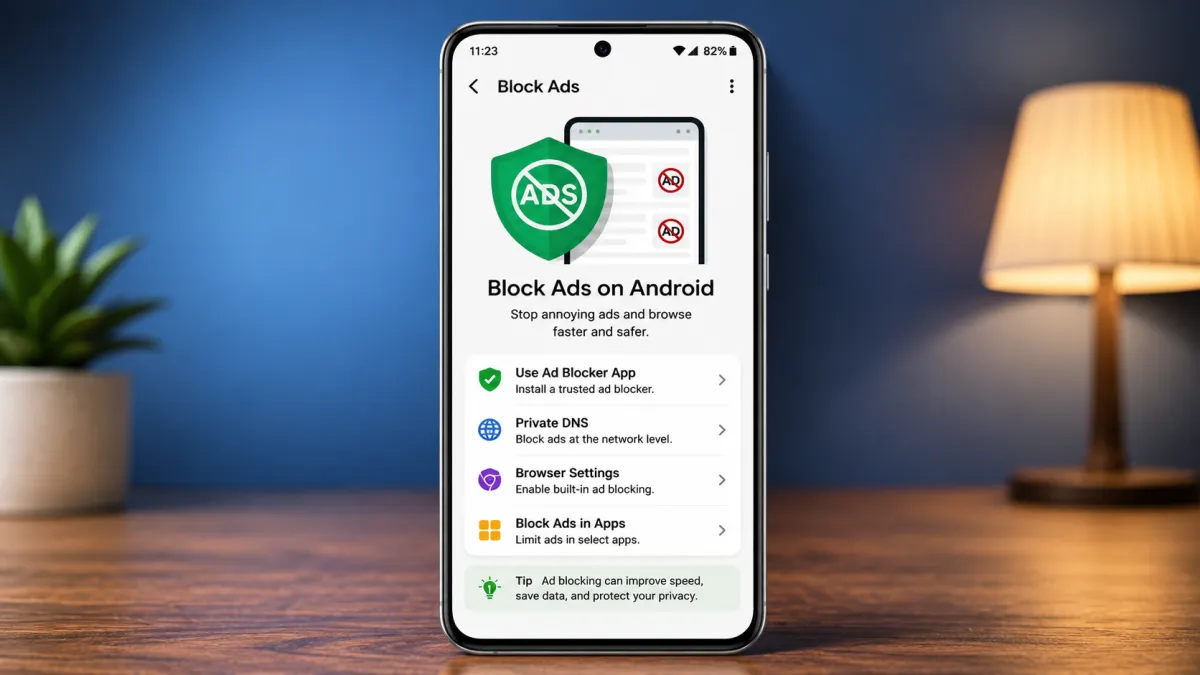
Seeing advertisements while using an Android phone is normal, especially when you use free apps or browse websites. But if ads start appearing constantly, opening unexpected pop-ups, or showing notifications from websites you rarely visit, something may need attention.
Fortunately, Android provides several settings that can help reduce intrusive advertisements. You can also remove problematic apps, adjust browser permissions, and use trusted privacy tools for a cleaner browsing experience.
This guide explains practical ways to control unwanted ads without making risky changes to your phone.
Also read: How Does LTE Work? A Simple Guide to LTE Mobile Networks
Quick Ways to Reduce Android Ads
- Uninstall apps that display suspicious or excessive advertisements.
- Block unwanted website notifications in your browser.
- Enable your browser’s built-in protection against pop-ups and intrusive ads.
- Review apps that can appear over other applications.
- Use reputable ad-blocking or privacy tools when necessary.
- Keep Android and your installed apps updated.
First, Find Out Where the Ads Are Coming From
Before installing an ad blocker, try to identify when the advertisements appear.
If ads only appear inside a particular free app, they may simply be part of that app’s normal advertising system. In that situation, removing the app or checking whether it offers an ad-free version may be the simplest solution.
However, if full-screen advertisements appear on the home screen, lock screen, or while using completely different apps, a recently installed application could be responsible.
This distinction is important because browser settings cannot usually stop advertisements generated directly by other Android apps.
Remove Apps Responsible for Unwanted Ads
A suspicious or poorly designed application can sometimes generate intrusive advertisements.
To check your installed apps:
- Open Settings on your Android phone.
- Tap Apps, App management, or a similar option.
- Open the list of installed applications.
- Look for apps you don’t recognize or no longer need.
- Select the app and choose Uninstall.
Pay particular attention to apps installed shortly before the unwanted ads started appearing.
If you don’t remember installing an application, researching its name before removing it can help you avoid deleting something important.
Check Recently Installed Apps
Android phones from different manufacturers use slightly different menus. Some devices allow you to sort applications by installation date or recently used apps.
If that option is available, use it to identify applications that were added around the time the advertising problem began.
Block Pop-Ups and Intrusive Ads in Chrome
If advertisements mainly appear while browsing the internet, Chrome’s built-in controls can help.
Open Chrome, tap the three-dot menu, and go to Settings. Depending on your Chrome version, look under Site settings or related privacy settings.
Review options for:
- Pop-ups and redirects
- Intrusive advertisements
- Notifications
- Permissions granted to websites
Make sure websites you don’t trust aren’t allowed to send notifications.
Stop Unwanted Website Notifications
Website notifications can sometimes look like ordinary phone notifications, making them easy to mistake for messages or system alerts.
If you receive unwanted notifications from a website, open Chrome’s notification or site-permission settings and remove that site’s permission.
You can also manage permissions directly when visiting a website, depending on the Chrome version installed on your phone.
Use a Privacy-Focused Browser
Another option is to use a browser that includes built-in protection against advertisements and tracking.
Some privacy-focused browsers provide features that can block trackers and certain types of advertising without requiring additional applications.
However, remember that browser-based blocking generally affects websites opened through that browser. It won’t automatically remove advertisements displayed inside other Android applications.
Consider a Trusted Ad-Blocking Tool
For users who want broader control, reputable ad-blocking or DNS-based privacy solutions are available for Android.
These tools can reduce connections to known advertising and tracking domains. Some work through a local VPN-style connection, while others use private DNS features supported by Android.
Before installing anything, check:
- Who develops the application
- What permissions it requests
- Its privacy policy
- User reviews and reputation
- Whether it requires unnecessary access to your personal data
Avoid random “100% ad blocker” APK files from unknown websites. Installing applications from unreliable sources can create more security problems than the advertisements themselves.
Change Android’s Private DNS Settings
Recent Android versions support Private DNS, which can also be used with certain DNS services designed to reduce advertising and tracking.
To check the option, open:
Settings → Network & internet → Private DNS
The exact location can differ between manufacturers and Android versions.
If you choose a custom DNS provider, use a reputable service and understand that DNS-based blocking cannot remove every type of advertisement. It may also affect some websites or applications if a required domain is blocked.
If something stops working after changing the setting, simply switch back to the previous option.
Check the “Display Over Other Apps” Permission
Some applications can appear on top of other apps when they have permission to display over other applications. If you are seeing unexpected overlays, this permission is worth checking.
Go to your phone’s Settings → Apps → Special app access and look for an option such as Display over other apps or Appear on top.
Review the applications listed there. If an unfamiliar app has this permission and doesn’t genuinely need it, disable the permission.
The menu name and location can vary depending on your Android phone.
Turn Off Unnecessary App Notifications
Not every unwanted notification is technically an advertisement generated by the app itself. Some applications send promotional notifications that can become annoying.
You can control these notifications individually.
Go to:
Settings → Notifications → App notifications
Select the application and turn off notification categories you don’t want.
If an app constantly sends promotional alerts that you cannot reasonably control, consider uninstalling it if you don’t need it.
Keep Your Android Phone Updated
Software updates aren’t specifically designed to remove advertisements, but keeping Android and your applications updated is an important security practice.
Updates can include:
- Security improvements
- Bug fixes
- Permission changes
- Browser improvements
- Compatibility updates
Install updates from your phone’s normal system settings and keep apps updated through the official app store.
What If Ads Continue Even After Uninstalling an App?
If the advertisements continue after removing a suspicious application, check your browser notifications and special app permissions again.
You can also restart your phone and run the built-in security scan available on your device, such as Google Play Protect on supported Android phones.
If the problem remains severe, back up your important data and consider getting help from the phone manufacturer’s support service before performing a factory reset.
A factory reset should generally be treated as a last resort because it removes personal data and restores the device to its initial setup state.
Avoid These Common Mistakes
When trying to get rid of Android ads, don’t install several unknown ad-blocking applications at once. Some apps that claim to improve security may themselves behave poorly or request excessive permissions.
Also avoid modifying system files or installing unofficial applications simply because they promise to block every advertisement.
A safer approach is to start with Android’s own settings, remove suspicious apps, control browser permissions, and use well-known privacy tools only when necessary.
Final Thoughts
You can significantly reduce unwanted advertisements on an Android phone without making complicated system changes. Start by identifying where the ads are coming from, then remove suspicious applications and review browser notifications and app permissions.
For web browsing, Chrome’s built-in controls or a reputable privacy-focused browser can help limit intrusive advertising. If you need broader filtering, a trusted ad-blocking or Private DNS solution may provide additional control.
Most importantly, avoid unknown APK files and questionable ad-blocker apps. A simple combination of Android’s built-in security features, careful app management, and trusted privacy settings is usually the safest way to enjoy a cleaner Android experience.

I am a passionate Tech Writer with strong industry experience. I enjoy exploring the latest technological innovations and sharing clear, helpful insights with my audience.