Over time, your Mac may collect apps that you no longer use. These unnecessary applications can occupy storage space, make your Applications folder cluttered, and sometimes leave behind files that serve no purpose. Fortunately, macOS offers several easy ways to uninstall apps, depending on how they were installed.
Also read: How to Lock a Folder in Windows 11?
In this guide, you’ll learn the safest methods to remove apps from your Mac and keep your system clean.
Why Remove Unused Apps?
Deleting apps you no longer need offers several benefits. It helps recover valuable storage, keeps your Mac organized, and reduces the number of unnecessary applications installed on your system.
Some advantages include:
- Freeing up disk space
- Organizing the Applications folder
- Removing software you no longer use
- Improving storage management
- Making it easier to find important apps
Regular cleanup can help maintain a tidy workspace, especially if you frequently install new software.
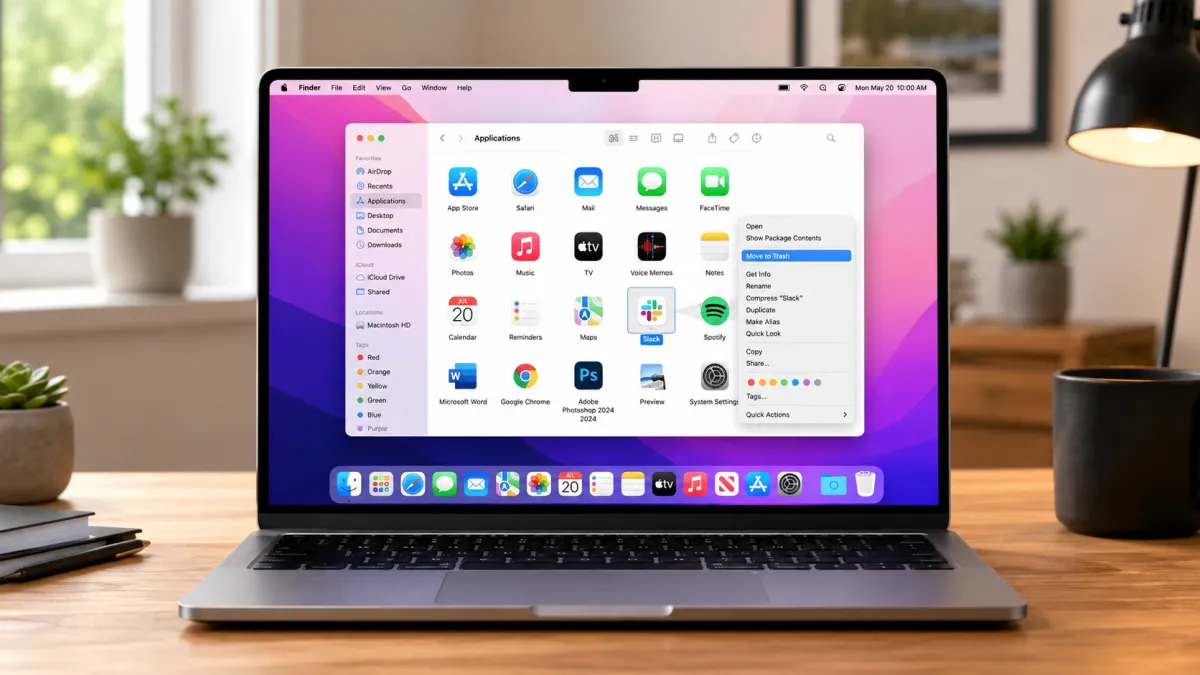
Method 1: Delete Apps Using Finder
Finder is the easiest and most commonly used method for uninstalling applications.
Steps to Remove an App
- Close the application if it’s currently running.
- Open Finder.
- Select Applications from the sidebar.
- Locate the app you want to remove.
- Drag it to the Trash, or right-click and choose Move to Trash.
- Enter your administrator password if prompted.
- Empty the Trash to permanently delete the application.
If you’re unable to locate the app, use Spotlight Search to find it and then open its location in Finder.
Method 2: Remove Apps Through Launchpad
Applications downloaded from the Mac App Store can often be deleted directly from Launchpad.
Here’s How
- Open Launchpad.
- Find the application.
- Click and hold its icon until the apps begin to jiggle.
- If an X appears, click it.
- Confirm the deletion.
If no X button is available, the application must be removed using Finder or another supported method.
Method 3: Use the App’s Official Uninstaller
Some programs install additional files throughout macOS and include their own uninstall utility.
This is common with:
- Antivirus software
- Video editing applications
- Design software
- Developer tools
- Utility programs
Before manually deleting these apps, check whether the developer provides an uninstall option inside the application or its installation folder. Using the official uninstaller usually removes related files more completely.
Method 4: Clean Up Leftover Files
Even after deleting an application, some support files may remain on your Mac.
These can include:
- Cache files
- Preferences
- Log files
- Application support folders
- Temporary data
Trusted Mac cleanup utilities can help locate these leftover files, allowing you to remove them if they are no longer needed. Always review the list carefully before deleting anything.
Method 5: Remove Apps Using Terminal
Advanced users can also uninstall applications through Terminal.
This method is generally used for:
- Software installed using package managers
- Developer tools
- Applications requiring command-line removal
Since Terminal commands can permanently delete files, verify every command before executing it and avoid removing system components unless you fully understand their purpose.
Things to Check Before Uninstalling
Before removing any application, keep these points in mind:
- Your personal documents are usually not deleted with the app.
- Files created by the application may require it to open correctly.
- Removing an app does not cancel paid subscriptions.
- Some built-in macOS applications cannot be deleted.
- If an app refuses to uninstall, close it completely or restart your Mac before trying again.
Taking a few moments to review these details can help prevent accidental data loss.
Tips for Keeping Your Mac Organized
Routine maintenance makes managing your Mac much easier.
Consider these simple habits:
- Delete apps you no longer use.
- Empty the Trash regularly.
- Review the Downloads folder periodically.
- Check storage usage in macOS settings.
- Back up important files before major cleanup.
- Remove temporary files occasionally using trusted utilities.
A little maintenance every few weeks can help keep your Mac running efficiently.
Which Removal Method Is Best?
The ideal method depends on how the application was installed.
| Method | Best For |
|---|---|
| Finder | Most desktop applications |
| Launchpad | Apps downloaded from the Mac App Store |
| Official Uninstaller | Large software suites and utility programs |
| Cleanup Utility | Removing leftover files after uninstalling |
| Terminal | Advanced users and command-line applications |
Using the appropriate method helps ensure the application is removed as cleanly as possible.
Final Thoughts
Uninstalling apps on macOS is a straightforward process, whether you’re removing a simple App Store download or a large desktop application. Finder is suitable for most situations, while Launchpad offers a quick option for App Store apps. For programs that install additional system components, using the developer’s official uninstaller is often the most effective approach.
By regularly removing unused software and cleaning up leftover files, you can free up storage space, keep your Mac organized, and make day-to-day file management much easier.

I am a passionate Tech Writer with strong industry experience. I enjoy exploring the latest technological innovations and sharing clear, helpful insights with my audience.