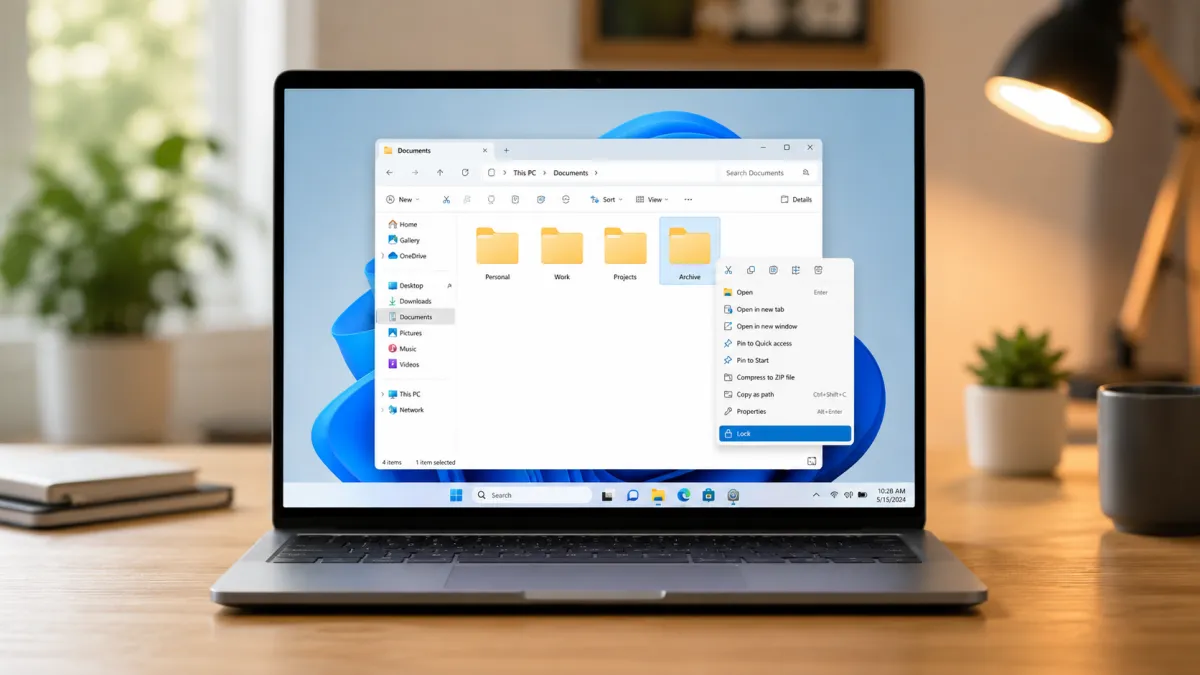
Keeping sensitive files secure is essential, especially if your computer is shared with family members, friends, or coworkers. While Windows 11 doesn’t include a direct option to password-protect individual folders, it offers several built-in security features that can help keep your data safe. If you need even more control, reliable third-party applications are also available.
In this guide, you’ll learn the different ways to lock or secure folders in Windows 11, along with useful security tips to better protect your personal information.
Also read: How to View and Manage Saved Passwords on Android?
Why Protect a Folder?
A locked or encrypted folder helps prevent unauthorized users from viewing your private files. This can be useful for storing:
- Personal documents
- Financial records
- Office files
- Family photos and videos
- Confidential business data
- Backup files
Choosing the right protection method depends on how much security you need.
Method 1: Encrypt a Folder Using EFS
Windows 11 Professional and Enterprise editions include the Encrypting File System (EFS), which encrypts folders so only your Windows user account can access them.
Advertisements
Steps to Enable EFS
- Right-click the folder you want to secure.
- Select Properties.
- Under the General tab, click Advanced.
- Check Encrypt contents to secure data.
- Click OK, then Apply.
- Select Apply changes to this folder, subfolders, and files.
- Save the encryption certificate when Windows prompts you.
Once encryption is enabled, every new file placed inside that folder is automatically encrypted.
Note: EFS is unavailable on Windows 11 Home edition.
Method 2: Protect an Entire Drive with BitLocker
If your goal is to secure everything stored on a drive, BitLocker is one of the safest built-in options.
Enable BitLocker
- Open Settings.
- Go to Privacy & Security.
- Open Device Encryption or BitLocker Drive Encryption (depending on your Windows edition).
- Choose the drive you want to encrypt.
- Turn on BitLocker.
- Create a password or PIN.
- Save the recovery key in a safe place.
- Start the encryption process.
BitLocker encrypts the entire drive, making your files inaccessible without proper authentication.
Method 3: Password-Protect Individual Documents
Sometimes you only need to secure specific files instead of an entire folder.
Many applications include built-in password protection, such as:
- Microsoft Word
- Microsoft Excel
- Adobe Acrobat PDF
Simply open the document, enable password protection from the application’s security settings, save the file, and use a strong password.
Method 4: Use Third-Party Folder Lock Software
If you prefer password-based folder protection, several trusted programs provide additional features beyond Windows’ built-in tools.
Popular options include:
- Folder Lock
- My Lockbox
- VeraCrypt
- AxCrypt
- 7-Zip
- WinRAR
Depending on the software, you can:
- Lock folders with passwords
- Hide sensitive folders
- Create encrypted vaults
- Protect USB drives
- Secure backup files
Always download software from official sources to reduce security risks.
Secure Files with Folder Guard
Folder Guard is another well-known utility for protecting folders.
Basic Setup
- Install and open Folder Guard.
- Select the folder you want to secure.
- Enable password protection.
- Create a strong password.
- Save your settings.
Folder Guard also supports features like:
- Automatic folder locking
- Read-only access
- Multiple password levels
- Hidden folders
- Protection for shared folders
Tips to Keep Your Files Safer
Regardless of the method you choose, following good security practices makes a big difference.
Some helpful tips include:
- Use strong, unique passwords.
- Keep Windows updated.
- Store recovery keys in a safe location.
- Back up important files regularly.
- Avoid sharing administrator accounts.
- Install security software from trusted developers only.
These habits help protect your files from accidental loss and unauthorized access.
Which Method Should You Choose?
Each option is designed for different situations.
| Method | Best For |
|---|---|
| Encrypting File System (EFS) | Protecting individual folders on supported Windows editions |
| BitLocker | Encrypting an entire drive |
| Password-Protected Documents | Securing individual Word, Excel, or PDF files |
| Third-Party Software | Advanced password protection and extra privacy features |
Choose the option that matches your security requirements and Windows edition.
Final Thoughts
Windows 11 offers several effective ways to secure your personal files. Whether you use EFS, BitLocker, password-protected documents, or trusted third-party software, protecting sensitive information is easier than ever.
If you simply need basic privacy, Windows’ built-in encryption features are often enough. For users who want password-protected folders and additional controls, dedicated security applications can provide even greater flexibility. No matter which method you choose, using strong passwords and keeping recovery information secure will help keep your data protected.

I am a passionate Tech Writer with strong industry experience. I enjoy exploring the latest technological innovations and sharing clear, helpful insights with my audience.
Advertisements