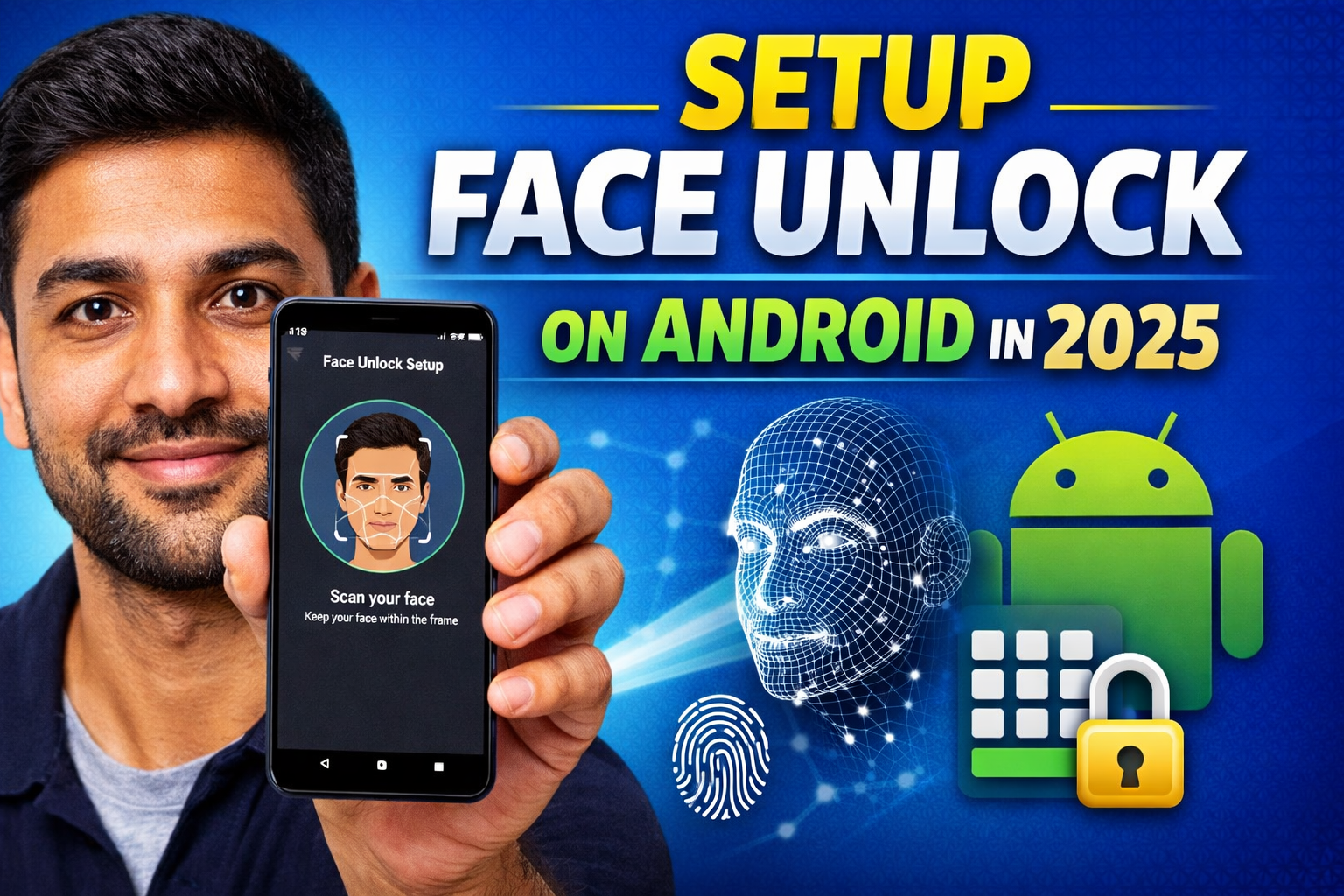
Unlocking a smartphone has become much easier over the years. Instead of entering a password or PIN every time, many Android devices now allow users to unlock their phones simply by looking at the screen. This feature, known as Face Unlock, uses the front camera and built-in software to recognise your facial features and grant access quickly.
If your Android phone supports this feature, you can enable it in just a few minutes. The following guide explains how to activate Face Unlock and use it effectively while keeping your device secure.
Steps to Enable Face Unlock on Android
Most Android phones follow a similar process for enabling facial recognition, although menu names may differ slightly depending on the device brand and Android version.
1. Open the Settings menu
Start by unlocking your phone and opening the Settings application. It is usually represented by a gear icon.
2. Go to the security section
Scroll through the list until you find a section labelled Security, Biometrics, or Security & Privacy. Tap on it to open more options.
3. Select facial recognition
Look for an option called Face Unlock, Face Recognition, or something similar. On some devices, this option may appear under Biometric Authentication.
4. Confirm your existing lock method
Before setting up facial recognition, the phone will ask you to enter your current PIN, password, or pattern. This ensures that only the device owner can enable biometric access.
5. Register your face
Follow the instructions shown on the screen. Typically, you will need to hold the phone at eye level and position your face within a circular frame. The device scans your face from different angles to create a recognition profile.
6. Complete the setup
Once the scanning process finishes, save the settings. After that, your device can unlock when it recognises your face.
Benefits of Using Face Unlock
Face Unlock has become popular because it simplifies everyday phone use. Some of its main advantages include:
- Quick access: Unlock your device instantly without typing a password.
- Hands-free convenience: Useful when your hands are occupied or wearing gloves.
- User-friendly: Easy for people of all age groups to understand and use.
- Integrated security: Facial recognition works alongside your existing PIN or pattern for additional protection.
Keep in mind that the level of security may vary depending on the phone model and the technology used for facial detection.
Tips for Better Face Unlock Performance
To ensure the feature works reliably, follow these practical suggestions:
1. Use good lighting during setup
When registering your face, stand in a well-lit environment so the camera can capture clear details.
2. Keep the front camera clean
Dust or fingerprints on the lens can affect recognition accuracy.
3. Update your face profile if your appearance changes
Significant changes such as wearing glasses, growing a beard, or changing hairstyles may require you to register your face again.
4. Maintain a backup unlock method
Always keep a PIN, password, or fingerprint lock enabled. This helps if the phone cannot recognise your face in certain situations.
5. Avoid relying on facial recognition alone
While convenient, Face Unlock should ideally be combined with other security options for better protection.
Pattern Lock
Final Thoughts
Face Unlock is a practical feature that can make everyday smartphone use faster and more convenient. With just a few steps in the settings menu, you can enable facial recognition and access your phone with a simple glance.
However, it is still important to keep a backup unlocking method, such as a PIN or fingerprint, to maintain reliable security. When used responsibly, Face Unlock can provide a smooth and efficient way to access your Android device in 2025.

I am a passionate Tech Writer with strong industry experience. I enjoy exploring the latest technological innovations and sharing clear, helpful insights with my audience.