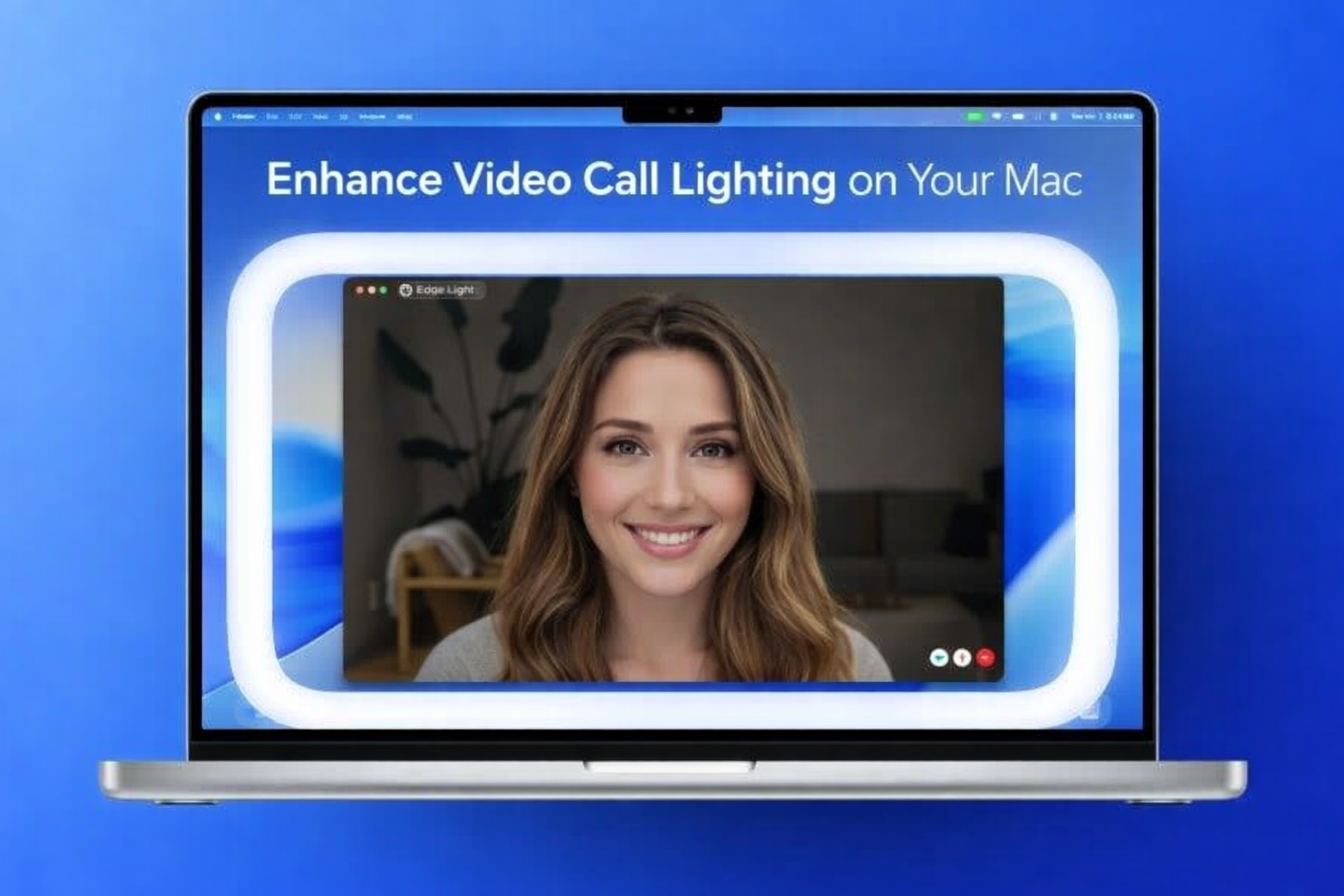
Good lighting can completely change how you look on a video call. Apple has introduced a simple yet effective solution called Edge Light in macOS Tahoe 26.2. This built-in video effect uses your Mac’s display to gently illuminate your face, making video calls clearer and more professional—especially in dim rooms.
The best part? You don’t need a ring light, desk lamp, or any extra setup. Your screen does the work for you.
What Is Edge Light and How It Helps
Edge Light is a system-level video effect designed to enhance face lighting during live video calls. When enabled, your Mac display emits a soft glow from the edges of the screen. This light falls naturally on your face, reducing shadows and improving visibility.
Unlike harsh lighting solutions, Edge Light keeps the effect subtle and balanced. It mimics the feel of a real ring light without looking artificial. The feature runs only when your camera is active and turns itself off as soon as the call ends.
Behind the scenes, macOS uses intelligent processing to:
- Detect your face position
- Adjust light placement automatically
- Balance brightness based on room conditions
All changes happen smoothly, without interrupting your work or blocking on-screen controls.
Compatible Macs and Displays
Edge Light is not available on every Mac. To use this feature, your system must meet certain requirements.
Supported hardware includes:
- All Macs powered by Apple Silicon (M1 chip or newer)
- Apple Studio Display when connected to a compatible Mac
- Built-in Mac cameras and most external USB webcams
While higher-quality cameras show better results, even basic webcams benefit from improved lighting.
Some newer Macs released in 2024 support automatic Edge Light activation, while older compatible models require manual enabling during calls.
How to Enable Edge Light During a Video Call
Turning on Edge Light is quick and easy once your Mac is updated.
Follow these steps:
- Update your Mac to macOS Tahoe 26.2
- Open a supported video calling app (such as FaceTime, Zoom, or Webex)
- Start or join a video call
- Look at the menu bar and click the green video or FaceTime icon
- Open the Video Effects panel
- Select Edge Light to activate it
Once enabled, you’ll notice a soft glow around your display edges and improved face lighting immediately. The effect remains active only for the duration of the call.
Customising Brightness and Warmth
Edge Light allows basic adjustments so the lighting matches your environment.
Inside the Edge Light settings, you’ll find:
- Brightness control – Increase it in darker rooms or reduce it in well-lit spaces
- Warmth control – Adjust colour tone to avoid overly yellow or bluish lighting
All changes apply in real time, making it easy to fine-tune your appearance during the call. These controls are useful for both daytime and night-time meetings.
Automatic Edge Light Activation on Newer Macs
If you’re using a Mac released in 2024, Edge Light can work automatically.
When this option is enabled:
- The system detects low-light conditions on its own
- Edge Light turns on without any manual action
- Your preference is saved for future calls
You can enable this by opening the Video Effects panel, expanding Edge Light options, and switching on automatic activation. This is especially helpful for users who attend frequent video meetings.
Apps That Support Edge Light
Edge Light works across many popular video calling platforms because it is built into macOS itself.
Commonly supported apps include:
- FaceTime
- Zoom
- Webex
Since the feature is managed at the system level, most apps do not require separate settings. If the app uses macOS video effects, Edge Light should appear automatically in the video controls.
Final Thoughts
Edge Light is a thoughtful addition to macOS that solves a common problem without adding complexity. It improves video call lighting, reduces reliance on external accessories, and works quietly in the background.
Whether you’re attending online meetings, interviews, or casual calls, this feature helps you look clearer and more balanced on screen. With both manual controls and automatic activation available, Edge Light adapts easily to different users and environments—making video calls more comfortable and professional.

I am a passionate Tech Writer with strong industry experience. I enjoy exploring the latest technological innovations and sharing clear, helpful insights with my audience.