It’s quite normal to forget a Wi-Fi password—especially when you rarely enter it yourself. Whether you’re setting up a new phone, helping a guest get online, or checking old network details, recovering a saved Wi-Fi password is usually straightforward.
Most modern devices store network credentials securely and allow you to view them with proper authentication. Below is a clear, device-wise guide to help you locate a saved Wi-Fi password on Android, iPhone, Windows PC, and Mac—using safe and practical methods.
Checking Saved Wi-Fi Passwords on Android Phones
Android offers different options based on the version you’re using. Newer phones make this very simple, while older models may require advanced access.
Option A: View Password via QR Code (Android 10 and Newer)
Recent Android versions include a built-in sharing feature that reveals the Wi-Fi password.
What to do:
- Open Settings on your phone
- Go to Network & Internet or Wi-Fi
- Tap on the currently connected network
- Select Share and verify using PIN, pattern, or fingerprint
- A QR code appears, with the password shown below it
You can scan this QR code from another device to connect instantly, without manually entering the password.
Option B: Access System Files (Older Android Versions – Advanced Users)
Phones running older Android versions do not show saved passwords by default. Accessing them requires root permissions.
Basic idea:
- Use a file manager that supports root access
- Navigate to
/data/misc/wifi/ - Open the configuration file (commonly
wpa_supplicant.conf) - Find your network name (SSID) and its corresponding password (PSK)
Important: Rooting a device can affect security and warranty. This approach is recommended only for users who understand the technical and security implications.
Finding Wi-Fi Passwords on an iPhone
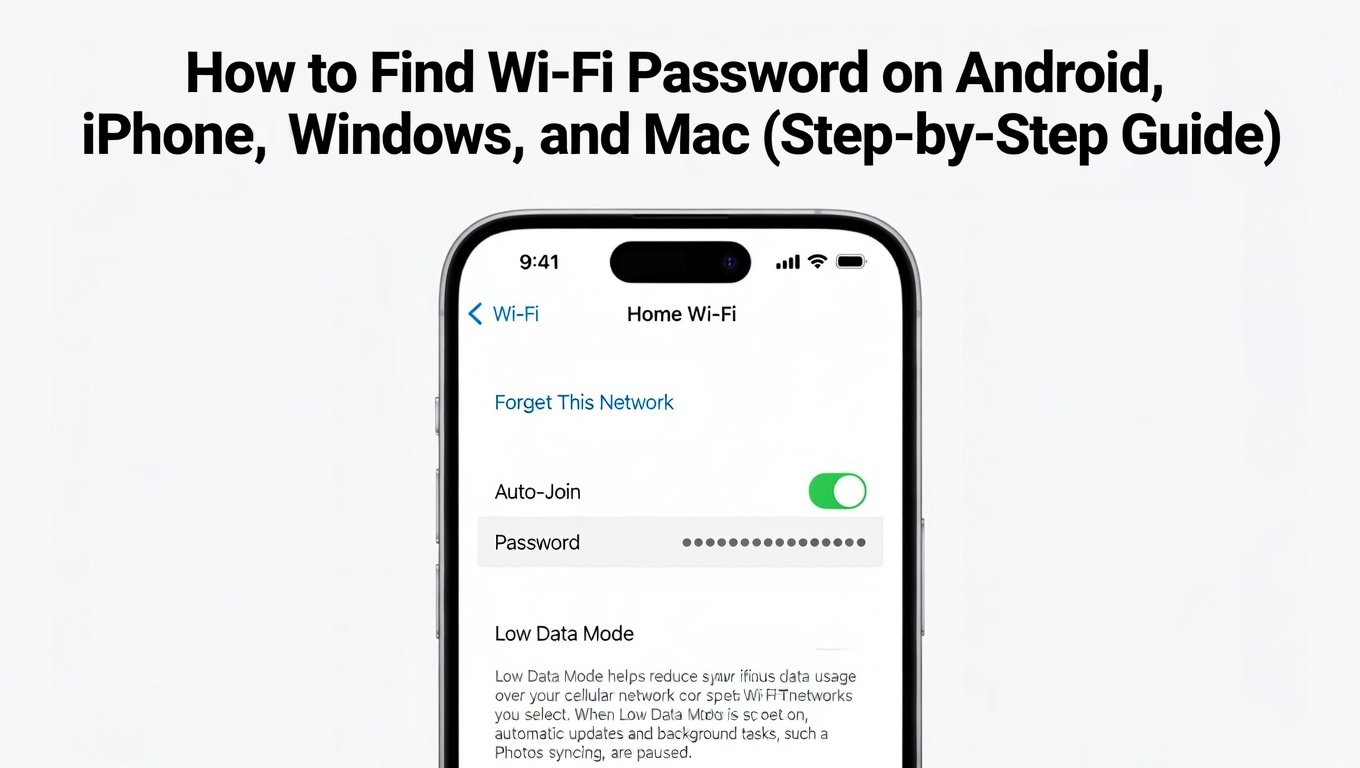
Apple introduced a direct password-viewing option starting with iOS 16. If your device is updated, the process is very simple.
View Saved Password on iOS 16 or Later
Steps:
- Open Settings
- Tap Wi-Fi
- Select the connected network
- Tap the info (i) icon
- Tap on the Password field
- Authenticate using Face ID, Touch ID, or passcode
You can now view and copy the password easily.
If Your iPhone Is on an Older iOS Version
Earlier iOS versions don’t show saved Wi-Fi passwords directly. In that case, you can access the router’s settings.
How:
- Open Safari or any browser
- Enter
192.168.1.1or192.168.0.1 - Log in using router credentials (usually printed on the router)
- Go to Wireless or Security settings
- Check the Wi-Fi password there
This method works regardless of your iOS version.
Recovering Wi-Fi Passwords on Windows Computers
Windows stores Wi-Fi credentials locally and allows you to view them through system tools.
Method 1: Using Network Settings
Steps:
- Press Win + R, type
ncpa.cpl, and press Enter - Right-click the active Wi-Fi connection
- Choose Status → Wireless Properties
- Open the Security tab
- Tick Show characters
The Wi-Fi password will be visible immediately.
Method 2: Using Command Prompt
This option is useful if you’re comfortable with basic commands.
Steps:
- Open Command Prompt as Administrator
- Type:
netsh wlan show profile name="YourWiFiName" key=clear - Replace YourWiFiName with the actual network name
- Press Enter
- Look for Key Content under Security Settings
That field displays the saved password.
Viewing Wi-Fi Passwords on macOS
Mac computers save network credentials in Keychain Access, Apple’s secure password manager.
Retrieve Password via Keychain Access
Steps:
- Click the Spotlight icon (top-right)
- Search for Keychain Access and open it
- Select System or Login, then Passwords
- Locate your Wi-Fi network name
- Double-click it and tick Show password
- Enter your Mac’s administrator password
The Wi-Fi password will now be displayed.
Quick Search Tip
Use the search bar inside Keychain Access to type the Wi-Fi network name directly. If multiple results appear, checking Local Items usually helps.
Checking the Wi-Fi Password Directly from the Router
If none of your devices are connected, the router itself can still help.
Steps:
- Open a browser on any device
- Enter
192.168.1.1or192.168.0.1 - Log in using router credentials (often printed on the back)
- Open Wireless Settings or Security
- Locate the Wi-Fi password field
This method works universally, regardless of device or operating system.
Final Thoughts
Forgetting a Wi-Fi password is a common and harmless issue. Thankfully, smartphones, computers, and routers all provide reliable ways to recover saved network details with proper authentication. By following the steps above, you can quickly find your Wi-Fi password on Android, iPhone, Windows, or Mac—without confusion or unnecessary risk.

I am a passionate Tech Writer with strong industry experience. I enjoy exploring the latest technological innovations and sharing clear, helpful insights with my audience.