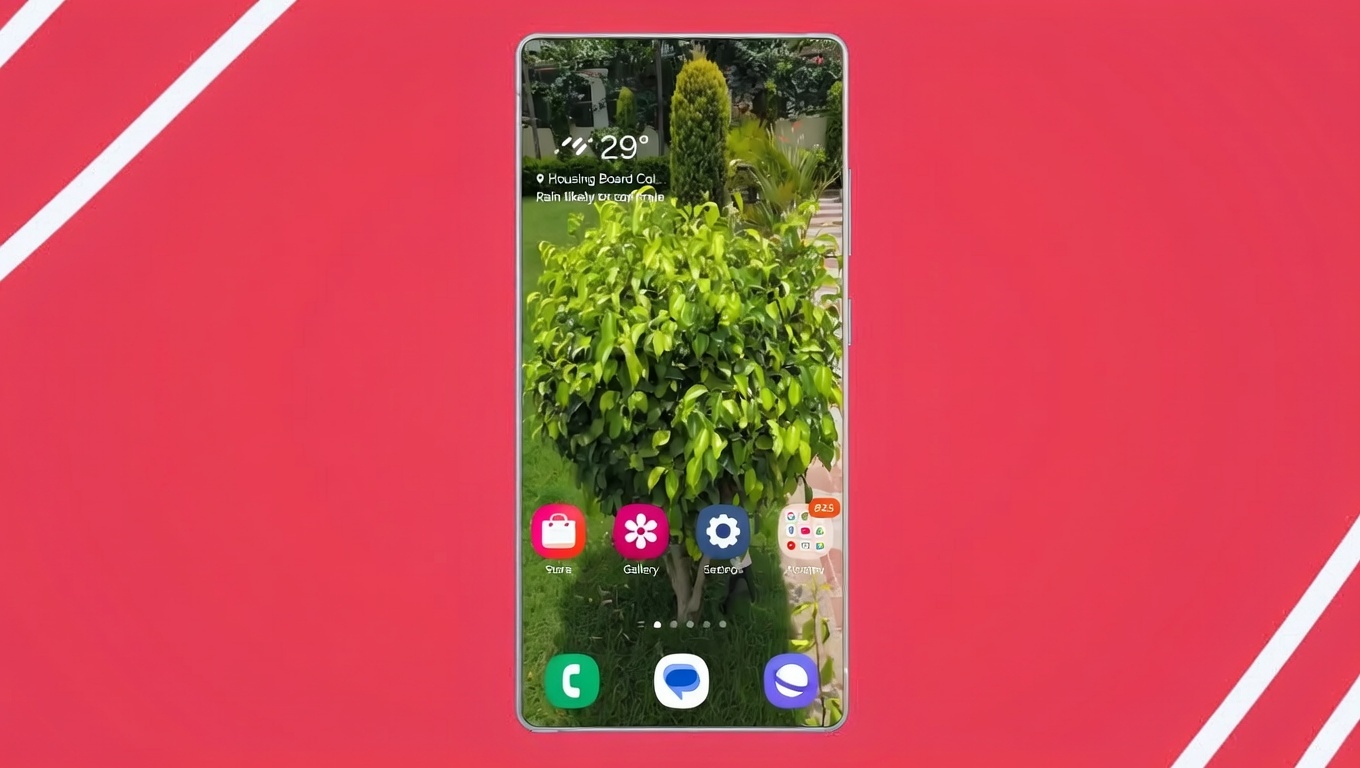
Using the same phone screen every day can start to feel dull. Even premium smartphones lose their charm when the wallpaper never changes. A simple way to bring freshness back to your device is by using transparent live wallpapers. These animated backgrounds add movement and style, making your phone feel more personal and visually engaging.
Both iPhone and Android users have practical options to create and apply live wallpapers without complex steps. Below is a completely restructured and easy-to-follow guide explaining how you can do it.
Also read: How to Create and Set Up Transparent Live Wallpaper on Android and iPhone?
How Live Wallpapers Work on Smartphones
Live wallpapers are animated backgrounds that respond to touch or play short motion clips on your screen. Unlike static images, they create a dynamic feel. However, the way live wallpapers work depends heavily on your phone’s operating system and version.
Before proceeding, it’s important to understand that live wallpaper support varies across devices and software updates.
Setting Up Transparent Live Wallpaper on iPhone
Apple supports animated wallpapers through Live Photos, which are short motion images captured by the iPhone camera. This feature is available on iPhone 6S and newer models, but only on specific iOS versions.
Important note:
With the introduction of iOS 16, Apple removed traditional live wallpapers from the Lock Screen. Users running older iOS versions can still use this feature.
Steps to Apply a Live Photo as Wallpaper (Older iOS Versions)
- Open Settings on your iPhone
- Tap Wallpaper
- Select Add New Wallpaper
- Choose Live Photo from the options
- Pick a Live Photo from your gallery
- Tap Set
- Decide where to apply it: Lock Screen, Home Screen, or both
Once applied, the wallpaper animates when you press and hold the screen.
Using Apps for More Live Wallpaper Options on iPhone
If your gallery feels limited, several apps offer ready-made or customizable live wallpapers. Some commonly used options include:
- Live Transparent Wallpapers Forever
- Black Lite: Live Wallpapers
- WOW Pixel
- Wallpapers Now
- intoLive
These apps provide different styles, including transparent and motion-based effects.
Turning Videos into Live Wallpapers on iPhone
You can also convert short videos into Live Photos and use them as wallpapers. For example, videos from apps like TikTok can be saved as Live Photos using the share option inside the app. Once saved, the file behaves like a Live Photo and can be applied through the wallpaper settings.
This method allows more creative freedom while staying within iOS limitations.
Creating Transparent Live Wallpapers on Android Phones
Android does not come with built-in live wallpaper tools, but it offers greater flexibility through third-party apps. With the right apps, you can use videos, GIFs, or animated images as wallpapers.
Some reliable Android apps include:
- Video to Wallpaper
- KLWP Live Wallpaper Maker
- Pixamotion: Moving Pictures
- Walli (for animated and artistic wallpapers)
Applying a Video Wallpaper on Android (Simple Method)
Using the Video to Wallpaper App
This app allows you to set videos or GIFs directly as wallpapers.
Steps:
- Open the Video to Wallpaper app
- Tap the + icon
- Enter a name and select your video file
- Confirm and tap Apply
- Choose where to set it: Home Screen, Lock Screen, or both
Your selected video will now play as your wallpaper.
Creating Animated Wallpapers from Images on Android
Using the Pixamotion App
Pixamotion is ideal if you want to animate still images and convert them into live wallpapers.
How it works:
- Launch Pixamotion
- Tap Create New and select an image
- Adjust the size or add custom dimensions
- Use animation tools to add motion effects
- Save the project after previewing
- Choose file format and resolution
- Export the animation
- Apply it using a video wallpaper app
This method is perfect for creating custom, eye-catching wallpapers from personal photos.
Useful Tips Before Using Live Wallpapers
- Short video clips work better and load faster
- Animated wallpapers can consume more battery than static images
- Try different apps to find a style that suits your device
- Desktop users can explore tools like Wallpaper Engine for inspiration
- Avoid very long or high-resolution videos for smoother performance
Final Thoughts
Adding a transparent live wallpaper is a simple yet effective way to refresh your smartphone experience. iPhone users can rely on Live Photos and compatible apps, while Android users enjoy greater flexibility with videos and animated images.
Install
With tools like Pixamotion and Video to Wallpaper, customization becomes easy and creative. If you want your phone to feel less ordinary and more personal, experimenting with live wallpapers is definitely worth trying.

I am a passionate Tech Writer with strong industry experience. I enjoy exploring the latest technological innovations and sharing clear, helpful insights with my audience.