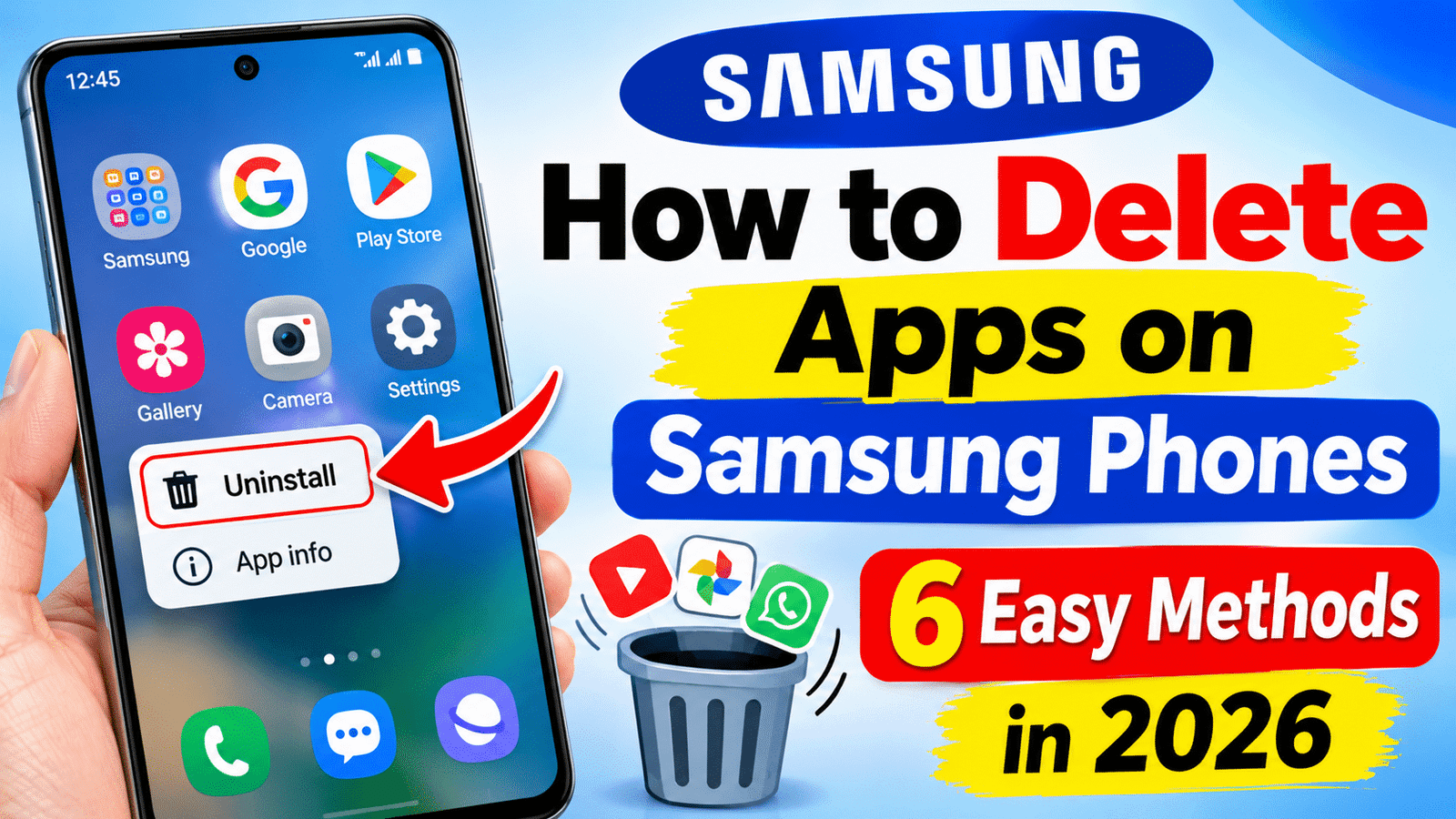
Samsung Galaxy smartphones usually come with a combination of pre-installed applications and apps downloaded by the user. As you continue using your phone, you may install new apps and eventually forget about some of them. Removing applications you no longer need can help free up storage space and make your phone easier to manage.
Fortunately, Samsung offers several ways to manage unwanted applications. You can uninstall apps directly from the Home screen, remove them through Settings, manage downloaded apps using the Google Play Store, or uninstall compatible applications through the Galaxy Store. For certain built-in apps, you may only see a Disable option rather than the option to uninstall them completely.
In this guide, we’ll explain six easy methods to delete, disable, or archive apps on a Samsung Galaxy phone in 2026.
Also read: OnePlus Turbo 6Vs Debuts With 9,000mAh Battery, 144Hz OLED Display and Snapdragon 7s Gen 4 Chipset
1. Uninstall Apps From the Home Screen or Apps Screen
The quickest way to remove an unwanted application is usually through its icon on the Home screen or Apps screen. You don’t need to open Settings or navigate through multiple menus.
Follow these steps:
- Locate the app you want to delete on your Home screen.
- If the app isn’t visible, swipe up to open the Apps screen.
- Press and hold the app icon until the available options appear.
- Tap Uninstall.
- Confirm the action by selecting OK or the confirmation option shown on your phone.
Once the process is complete, the application will be removed from your device if it supports uninstallation.
Remove vs. Uninstall: What’s the Difference?
When you press and hold an app icon, Samsung may display both Remove and Uninstall options. Although they sound similar, they serve different purposes.
- Remove: Removes the app shortcut from the Home screen without deleting the installed application.
- Uninstall: Removes the application from your phone.
If you simply want to clean up your Home screen, choosing Remove may be sufficient. However, if you want to delete the app itself and potentially free up storage, select Uninstall.
2. Delete Applications Through Samsung Settings
Another convenient method is to uninstall applications from the Settings menu. This option is particularly useful if you want to find an app by name or check how much storage it uses before removing it.
Here’s how to do it:
- Open the Settings app on your Samsung Galaxy phone.
- Scroll down and select Apps.
- Browse the installed applications or use the search function to find the app.
- Tap the application you want to remove.
- Select Uninstall, if the option is available.
- Confirm your selection when prompted.
Your Samsung phone will remove the application if it is eligible for uninstallation.
The App info screen can also provide useful details about storage consumption and other app settings. This makes it a good option when you’re trying to identify applications that occupy unnecessary space.
Keep in mind that some system applications may not have an Uninstall button. In such cases, Samsung may provide other options, including Disable, depending on the application and device.
3. Uninstall Multiple Apps Using the Google Play Store
If you’ve installed several applications that you no longer use, the Google Play Store can help you manage them from one place. On supported devices and versions, you can select multiple eligible apps rather than opening each app individually.
Follow these instructions:
- Launch the Google Play Store.
- Tap your profile picture in the upper-right corner.
- Select Manage apps & device.
- Open the Manage tab.
- Browse the installed applications and select the apps you want to remove, where multiple selection is supported.
- Tap the trash or uninstall option if it appears.
- Confirm the removal process.
The exact layout and available controls may vary depending on your Play Store version and device software. If your phone doesn’t offer a bulk-uninstall option, you may need to remove the selected applications individually.
This method is useful for managing downloaded apps, particularly when you want to review your installed applications without searching through the Home screen.
4. Remove Apps Through the Samsung Galaxy Store
Samsung Galaxy phones also support applications downloaded through the Galaxy Store. If you installed an app from Samsung’s store, you can check its store listing to see whether an uninstall option is available.
Here’s the process:
- Open the Galaxy Store app.
- Search for the application you no longer need.
- Open its details or store page.
- Look for the Uninstall option.
- Tap it and confirm the action if prompted.
If the Uninstall button isn’t available, you may need to manage the application through Settings instead. Some pre-installed or system applications cannot be removed using the standard uninstall process.
The available options can differ depending on the application, Samsung phone model, and software version.
5. Disable Pre-Installed Applications on Samsung Phones
Samsung smartphones often include applications that are installed before the phone reaches the user. Some can be uninstalled, but others are connected to system services or Samsung features and cannot be removed normally.
For certain applications, Samsung provides a Disable option. Disabling an app prevents it from running normally and may hide it from the regular app list, depending on the application and software version.
To disable an eligible app, follow these steps:
- Open Settings on your phone.
- Select Apps.
- Find the pre-installed application you want to manage.
- Tap its name to open the App info screen.
- Select Disable, if available.
- Confirm the action when your phone asks for permission.
On some Galaxy devices, you may need to use the menu or filtering options to locate system applications.
Important Things to Know Before Disabling Apps
Not every pre-installed application is safe to disable without affecting other features. Certain apps support calling, messaging, system settings, connectivity, or other essential phone functions.
Disabling a required application may cause some features to stop working correctly. Therefore, avoid disabling unfamiliar system apps simply because you don’t recognize their names.
If you aren’t sure what an application does, check its purpose before making changes. When an app is associated with an important phone function, keeping it enabled is generally the safer choice.
6. Archive Apps to Reduce Storage Usage
Uninstalling isn’t always the best option if you might need an application again later. App archiving can be an alternative on supported devices and software versions.
When an application is archived, its main installation files can be removed to save storage while its icon and certain app information remain available. Depending on the feature and application, you may be able to restore the app when you need it again.
To check whether archiving is supported on your phone:
- Open Settings.
- Navigate to Apps.
- Select the application you want to manage.
- Look for an Archive option, if available.
- Follow the instructions displayed on the screen.
The Archive option may not appear for every application or Samsung Galaxy model. Availability depends on the Android or One UI version, the app, and the archiving features supported by your device.
If you don’t see this option, you can consider uninstalling the app or checking whether your phone offers another storage-management feature.
Which Method Is Best for Removing Apps on Samsung?
The right method depends on whether you want to delete an application completely, hide its shortcut, or keep it available for future use.
- For quickly deleting one app: Use the Home screen or Apps screen.
- For checking an app’s storage usage: Open Settings and select Apps.
- For managing several downloaded apps: Check the Google Play Store’s app management section.
- For apps downloaded from Samsung’s store: Look for the uninstall option in the Galaxy Store.
- For built-in apps that cannot be uninstalled: Check whether the Disable option is available.
- For keeping an app’s information while reducing installation size: See whether app archiving is supported.
Before deleting an application, make sure you don’t need any information stored locally within it. Removing an app can delete its local data, although some information may remain available through an online account or cloud backup.
Final Thoughts
Removing unused applications is a straightforward way to keep your Samsung Galaxy smartphone organized and manage its available storage. You don’t necessarily have to delete every application you rarely use, because the best approach depends on your needs and the options supported by your device.
For downloaded apps, uninstalling is generally the most direct solution. For certain pre-installed applications, disabling may be the only available option, while archiving can help reduce storage usage on supported devices.
Remember that menu names and available features can vary across Samsung Galaxy models and One UI versions. If you cannot find a particular option, open Settings > Apps and check the application’s information page.
By choosing the appropriate method, you can manage unwanted apps more effectively without accidentally removing shortcuts or disabling features that your phone needs.

I am a passionate Tech Writer with strong industry experience. I enjoy exploring the latest technological innovations and sharing clear, helpful insights with my audience.