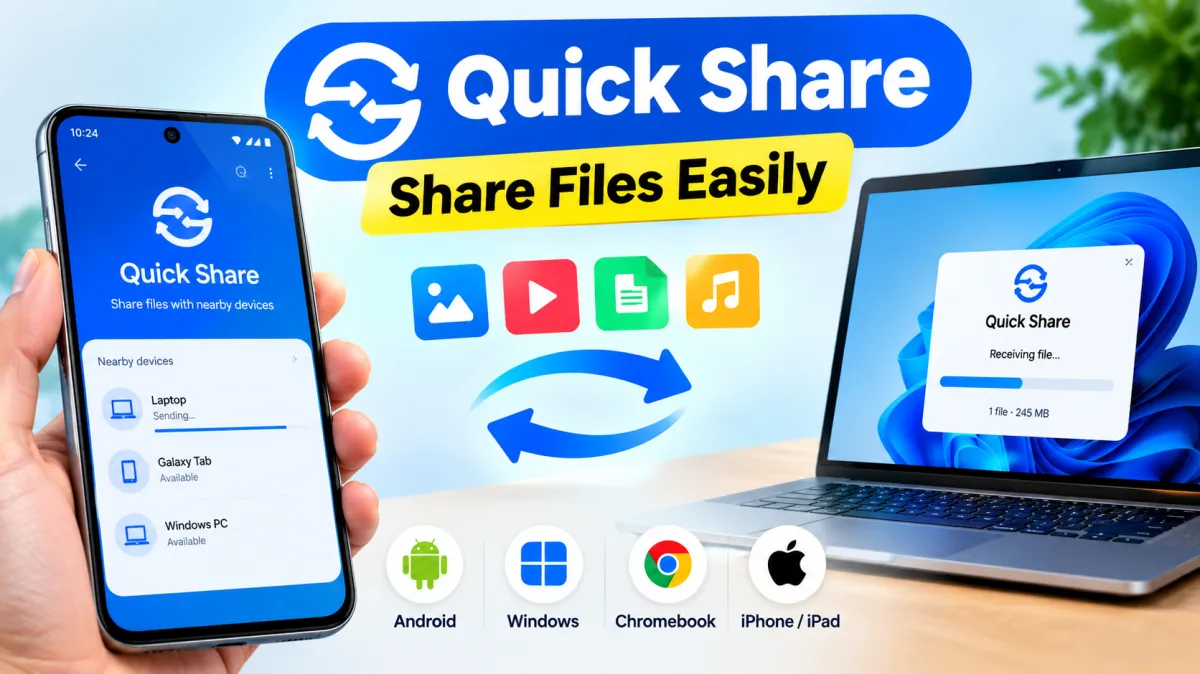
Quick Share makes it easy to transfer photos, videos, documents, and other files between compatible devices. Instead of relying on email or messaging apps, you can share content directly between nearby Android phones, tablets, Windows PCs, and Chromebooks.
Quick Share was previously known as Nearby Share on Android. Although the name has changed, its main purpose remains the same: making wireless file sharing simple and convenient. Some supported Android devices can also share files with Apple devices through compatible cross-platform features.
In this guide, you’ll learn how to send and receive files, change visibility settings, share using QR codes, connect your phone to a computer, and troubleshoot common problems.
Also read:- Apple HomeView Price in India, Features, Specifications and Availability
What Is Quick Share?
Quick Share is a file-sharing feature available on compatible Android devices and other supported platforms. It allows users to exchange files wirelessly without attaching them to emails or uploading them to messaging services.
On most compatible Android phones, Quick Share is already integrated into the system. You generally don’t need to install an additional app to transfer files between Android devices.
Before using Quick Share, check the following:
- Bluetooth is enabled on both devices.
- Wi-Fi is enabled when required by your sharing method.
- Both devices are switched on and close to each other.
- The receiving device is unlocked and discoverable.
- Your devices support the required Quick Share features.
How to Send Files Using Quick Share
Follow these steps to share photos, videos, documents, or other supported content.
- Open the file you want to share.
- Tap the Share button.
- Select Quick Share from the available options.
- Wait for nearby compatible devices to appear.
- Tap the recipient’s device name.
- Ask the recipient to tap Accept if prompted.
- Keep the devices nearby until the transfer finishes.
Once the transfer starts, you can generally leave the sharing screen while the process continues.
You can also search for Quick Share in your phone’s Settings if you want to access its options directly.
How to Change Quick Share Visibility Settings
Visibility settings determine who can discover your device when sending files. If another person cannot find your phone, checking these settings is a useful first step.
- Open Settings on your Android phone.
- Search for Quick Share.
- Open the feature and locate the visibility settings.
- Select the option that suits your needs.
Depending on your device, you may see options such as:
Your devices: Allows compatible devices signed in to the same Google Account to discover one another.
Contacts: Makes your device discoverable to eligible people in your contacts.
Everyone for 10 minutes: Temporarily allows nearby people to discover your device.
For everyday use, Your devices or Contacts is generally a sensible choice. If you’re receiving a file from someone outside your contacts, the temporary Everyone option may be more convenient.
How to Receive Files Using Quick Share
Receiving files is straightforward.
- Turn on Bluetooth.
- Unlock your phone.
- Check that your device is discoverable.
- Ask the sender to select your device.
- Review the transfer notification.
- Tap Accept to receive the files or Decline to reject them.
Some transfers between your own compatible devices may be accepted automatically when both devices use the same Google Account.
Where Are Received Files Saved?
On Android, start by checking the Downloads folder in your Files app. Depending on your phone and software version, received files may appear in a dedicated Quick Share folder or another appropriate location.
If you cannot find a file, search for its name using your phone’s file manager.
How to Share Files Using a QR Code
QR codes can make sharing easier when a device does not appear in the nearby-device list or when you prefer another connection method.
- Open the content you want to share.
- Tap Share and select Quick Share.
- Choose the QR code option if it is available.
- Scan the displayed code using the receiving device.
- Follow the instructions on both screens.
- Wait for the transfer to complete.
The exact process depends on the devices involved. Some QR-based cross-platform sharing methods require an internet connection, so check the instructions displayed on your device before proceeding.
How to Add Quick Share to Quick Settings
You can add Quick Share to your phone’s Quick Settings panel for faster access.
- Swipe down from the top of your screen.
- Open the Quick Settings editing screen using the pencil or Edit option.
- Find the Quick Share tile.
- Drag or add it to your active tiles.
- Save your changes if prompted.
The steps may differ slightly depending on your phone’s manufacturer and Android version.
How to Use Quick Share on Samsung Galaxy Phones
Samsung Galaxy phones include Quick Share with a similar purpose but may have a slightly different interface.
To send files:
- Open the photo, video, or document you want to share.
- Tap Share.
- Select Quick Share.
- Choose the recipient’s device.
- Accept the transfer on the receiving device if required.
You can usually find additional settings under Settings > Connected devices > Quick Share.
If a nearby device does not appear, check visibility settings and ensure Bluetooth is enabled. Features such as Wi-Fi Direct, mobile hotspot, or Smart View may interfere with sharing on some Galaxy devices.
How to Transfer Files Between Android and Windows
Quick Share also supports transfers between compatible Android devices and Windows PCs through Google’s Windows application.
Set Up Quick Share on Windows
- Visit Google’s official Quick Share website.
- Download the application compatible with your computer.
- Install and open the application.
- Sign in if required and configure your visibility settings.
- Enable Bluetooth on both devices.
- Follow any additional connection requirements displayed by the application.
Check the official system requirements before installing the app, as Windows version and processor compatibility can vary.
Send Files From Android to Windows
- Open the file on your Android phone.
- Tap Share > Quick Share.
- Select your Windows PC.
- Accept the transfer on the computer if prompted.
- Wait for the file to arrive.
Send Files From Windows to Android
Open Quick Share on your PC and select or drag the files you want to share into the application, depending on the available options. Select your Android phone and accept the transfer if necessary.
Received files are generally saved in the Quick Share folder inside Downloads, although the destination may depend on your settings.
How to Set Up Quick Share on a Chromebook
Many Chromebooks support Quick Share without requiring a separate application.
- Select the time and status area in the bottom-right corner.
- Open Settings.
- Select Connected devices.
- Find Quick Share and open its setup options.
- Choose a device name and visibility preference.
- Complete the setup instructions.
After configuration, your Chromebook can appear as a recipient when sharing supported files from a compatible Android phone.
Can You Use Quick Share With an iPhone, iPad, or Mac?
Cross-platform sharing depends on your Android device, software version, and supported features. Some newer Pixel devices and selected other Android phones support sharing with compatible Apple devices through AirDrop-related functionality.
If your devices support this feature:
- Open AirDrop settings on the Apple device.
- Select Everyone for 10 Minutes, if required and available.
- Open the content on your Android phone.
- Tap Share > Quick Share.
- Select the Apple device if it appears.
- Accept the incoming transfer when prompted.
If the Apple device does not appear, check whether your Android phone supports this feature and whether the relevant settings are enabled.
Some devices may offer a QR code-based alternative. Depending on the method, this can require internet access rather than a direct nearby transfer.
How to Fix Quick Share Not Working
If your phone cannot find another device or a transfer fails, try these solutions.
1. Check Bluetooth
Make sure Bluetooth is enabled on both devices. If necessary, turn it off and back on.
2. Move Devices Closer
Keep the devices close together while establishing the connection. A short distance can help devices discover each other more reliably.
3. Review Visibility Settings
Ask the recipient to unlock their phone and check who can discover their device. They may need to temporarily enable Everyone for 10 minutes.
4. Check Wi-Fi
Enable Wi-Fi when required by your sharing method, particularly when transferring files to a computer or using an internet-dependent QR code option.
5. Finish Other Transfers
If another file transfer is already running, allow it to finish before starting a new one.
6. Restart Both Devices
Restarting your phone and the receiving device can resolve temporary connection problems.
7. Update Your Software
Install available system updates and update the Quick Share application where applicable.
8. Reset Network Settings as a Last Resort
If Bluetooth and Wi-Fi continue to malfunction, resetting network settings may help. However, this can erase saved Wi-Fi networks, passwords, and paired Bluetooth devices, so use this option only after trying simpler solutions.
Frequently Asked Questions
Is Quick Share the Same as Nearby Share?
Yes. Google renamed Nearby Share to Quick Share. Some older devices or interfaces may still use the previous name.
Does Quick Share Require the Internet?
Transfers between nearby compatible Android devices generally do not require internet access. Some cross-platform sharing methods, however, may require it.
Where Can I Find Received Files?
Check the Downloads folder in your Android Files app or the Quick Share folder inside Downloads on Windows. The exact location can vary.
Is Quick Share Available on Every Android Phone?
Availability and features depend on device compatibility, Android version, and software updates. Check your phone’s Settings or manufacturer’s documentation.
Final Thoughts
Quick Share provides a convenient way to transfer files between compatible devices without relying on email or messaging apps. Once you know how to select a recipient, adjust visibility, and accept incoming transfers, sharing photos, videos, and documents becomes much easier.
For regular use, keep your visibility settings appropriate for your privacy needs and add Quick Share to Quick Settings for quick access. Before transferring a large collection of files, test the connection with a single photo to confirm that everything works correctly.

I am a passionate Tech Writer with strong industry experience. I enjoy exploring the latest technological innovations and sharing clear, helpful insights with my audience.
1 thought on “How to Transfer Files Between Android, Windows, and Other Devices by using Quick Share?”